

Creating an Account on RollQuest
Create a RollQuest account to start building games, uploading maps, inviting players, and using RollQuest’s browser-based virtual tabletop tools.
Before you start
You can create a RollQuest account using an email address and password, Google, or Discord. You do not need to download anything to create an account or start using RollQuest.
1. Open RollQuest
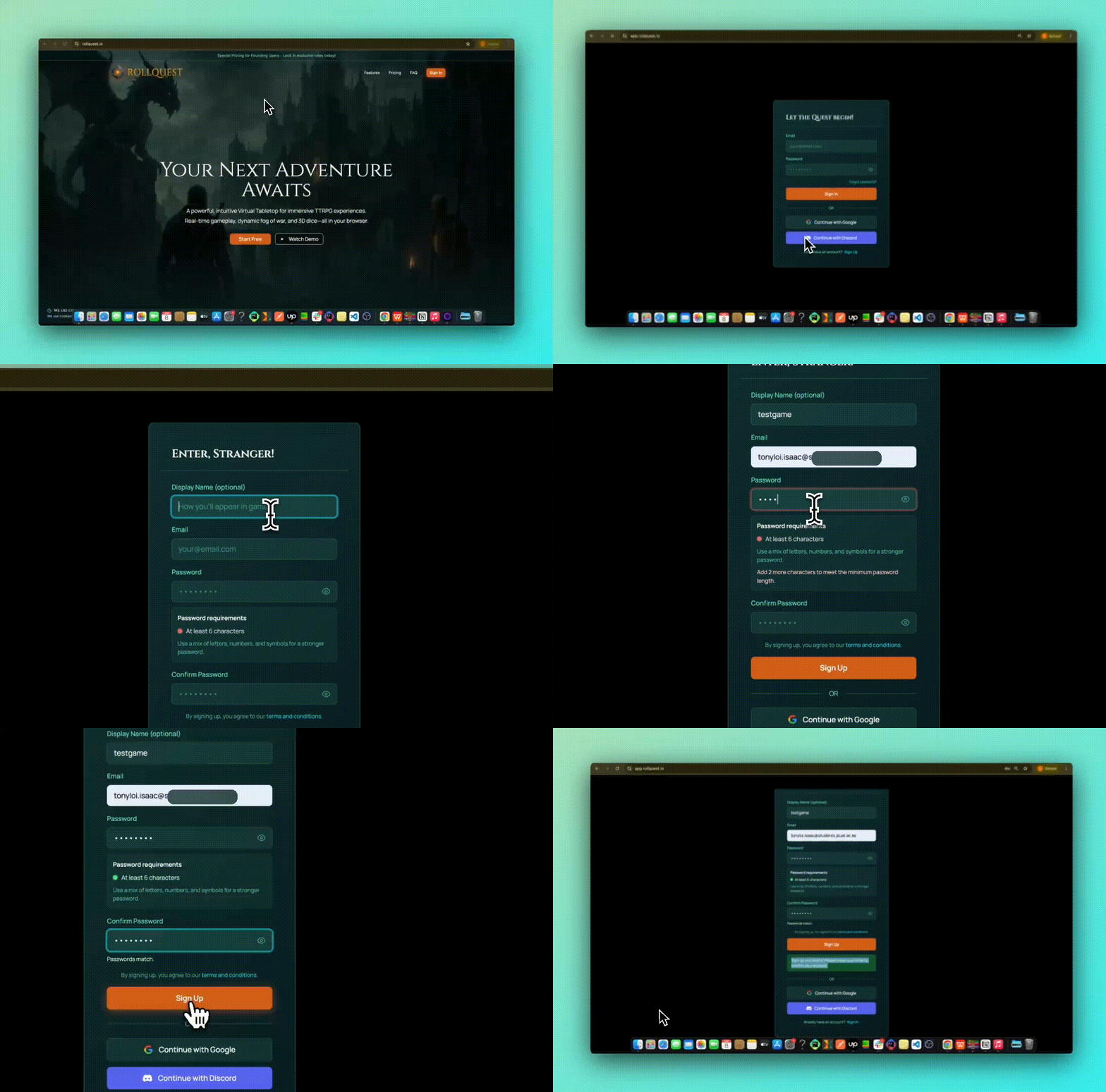
Go to the RollQuest website and click Start Free or Sign In from the homepage. This opens the RollQuest sign-in page.
2. Choose an Account Creation Method
On the sign-in page, choose how you want to create your account.
You can:
- Click Sign Up to create an account with email and password.
- Click Continue with Google to create an account using Google.
- Click Continue with Discord to create an account using Discord.
3. Create an Account with Email and Password
Click Sign Up and enter your account details:
- Display Name - Enter the name you want to use in RollQuest. This field is optional.
- Email - Enter the email address you want to use for your account.
- Password - Create a password for your account.
- Confirm Password - Enter the same password again.
Your password must have at least 6 characters. RollQuest also recommends using a mix of letters, numbers, and symbols for a stronger password.
Click Sign Up. A success message appears asking you to check your email and confirm your account.
4. Confirm Your Email
Open your email inbox. Look for an email from RollQuest with the subject: RollQuest - Confirm Your Signup. Open the email and click Confirm your mail.
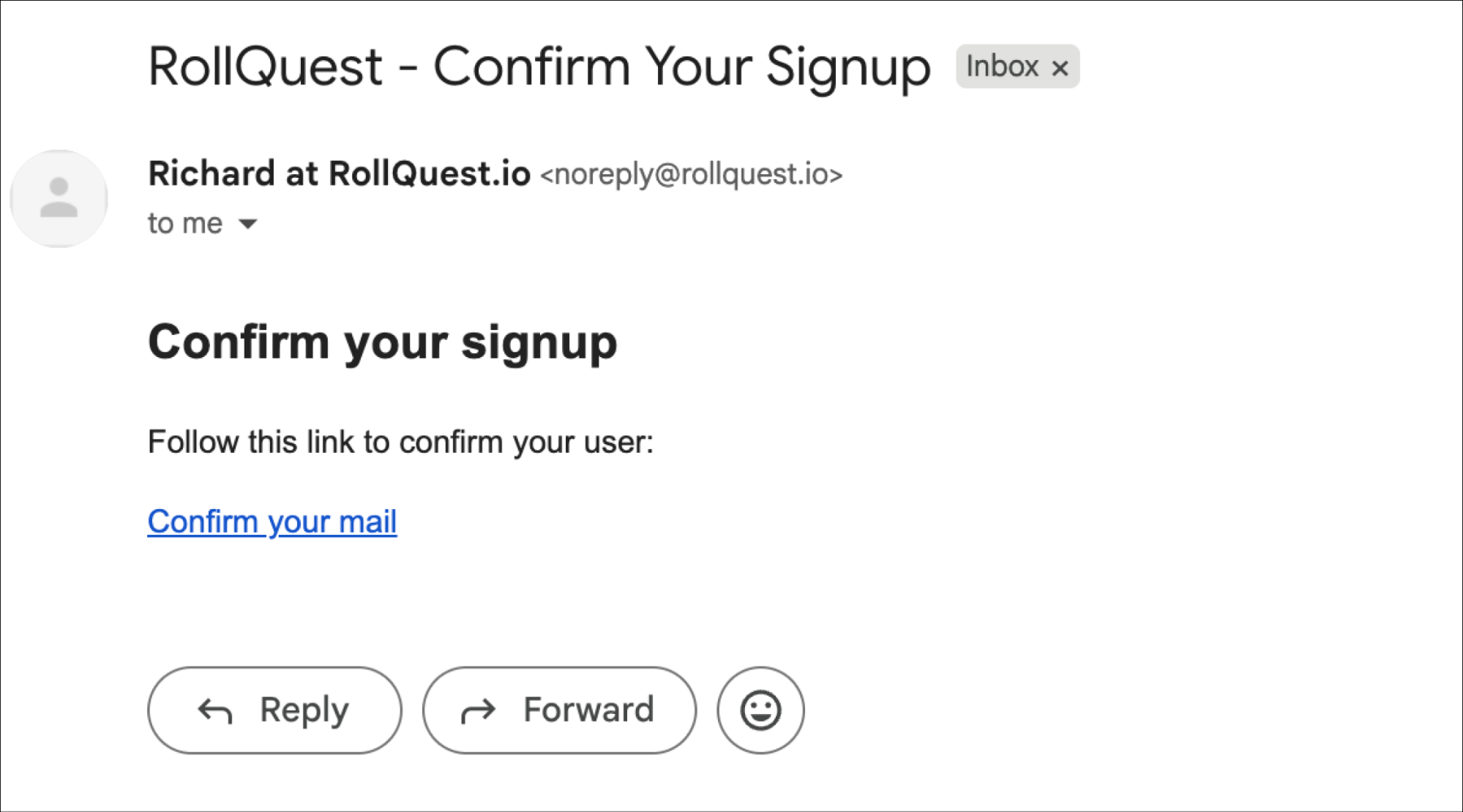
After confirming your email, return to RollQuest and sign in using your email and password.
5. Create an Account with Google
On the RollQuest sign-in page, click Continue with Google. Google opens a Choose an account screen.
Select the Google account you want to use. If the account is not listed, click Use another account and sign in with a different Google account.
Google then shows a permissions screen for rollquest.io. Review the information that Google will share with RollQuest, then click Continue.
After continuing, RollQuest creates your account and opens your RollQuest dashboard.
6. Create an Account with Discord
On the RollQuest sign-in page, click Continue with Discord. Discord opens a login page. You can sign in using one of the available Discord login methods:
- Enter your Email or Phone Number and Password, then click Log In.
- Scan the QR code using the Discord mobile app.
- Use passkey sign-in if it is available on your Discord account.
If you do not have a Discord account, click Register and create one first. After signing in, follow any Discord authorization prompts to continue to RollQuest.
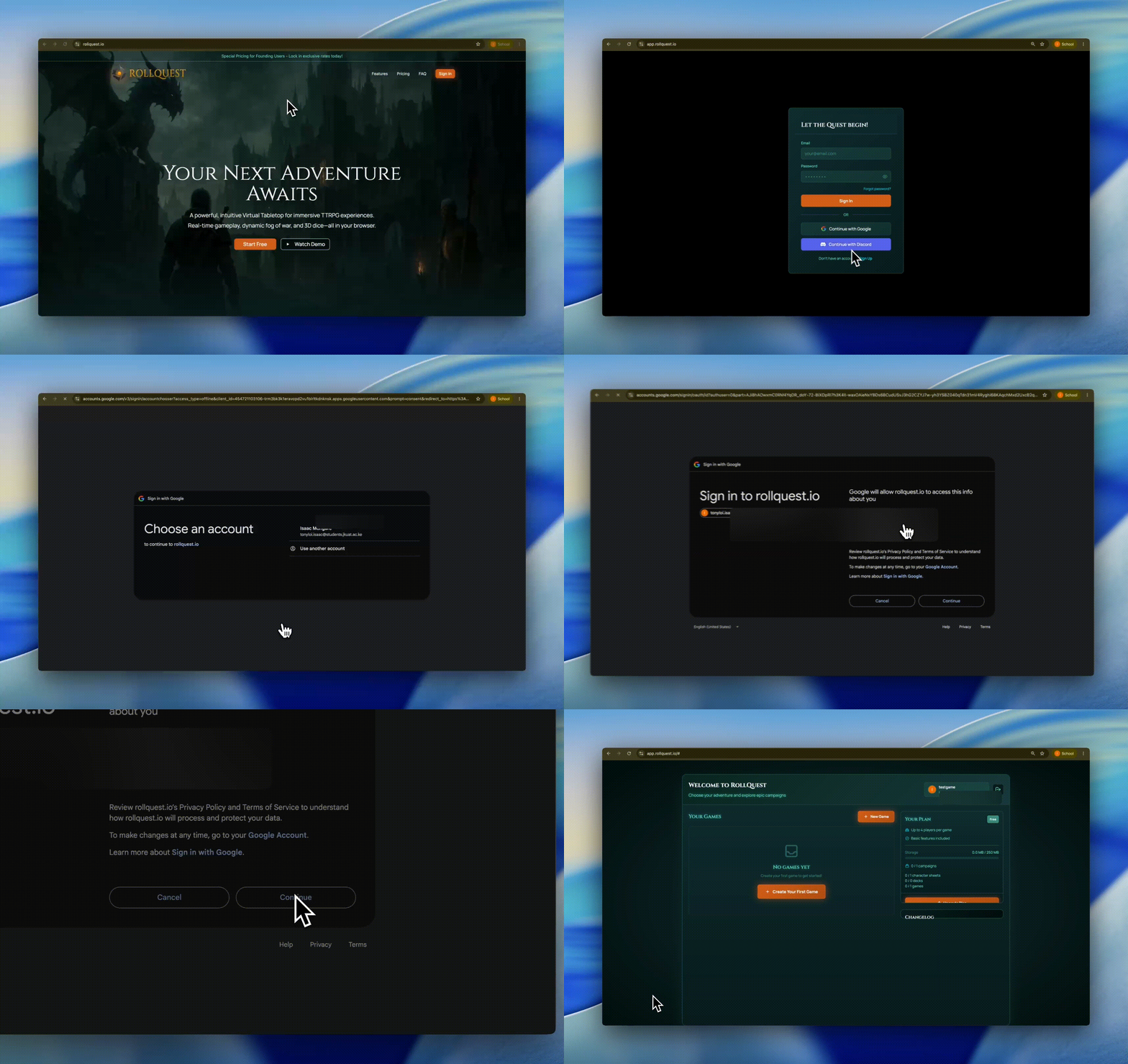
Once the process is complete, RollQuest creates your account and opens your RollQuest dashboard.
7. Confirm That Your Account Was Created
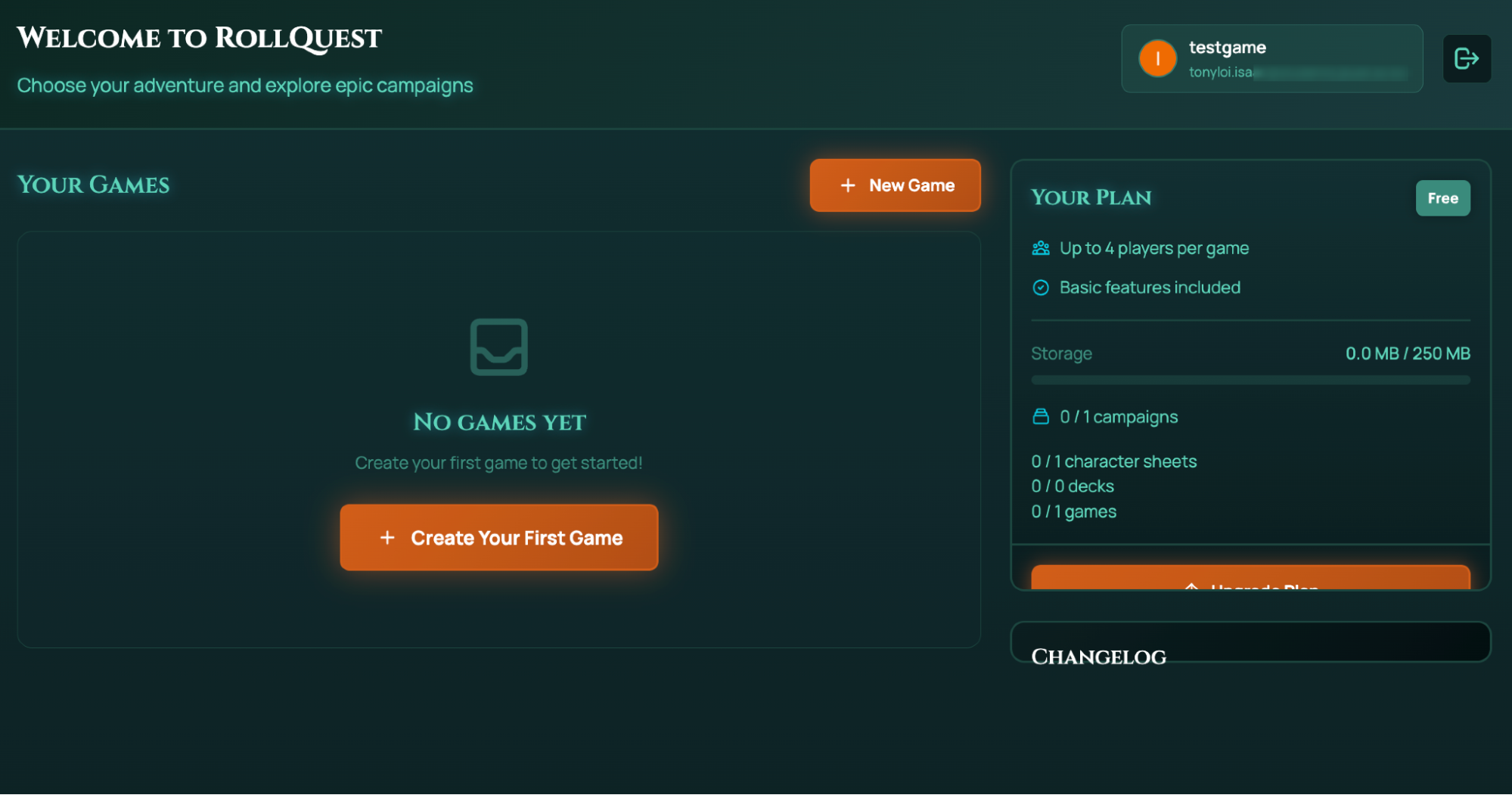
After signing up, you should see the RollQuest dashboard.
The dashboard shows:
- Welcome to RollQuest
- Your account name and email in the top-right corner
- Your Games section and a New Game button
- Create Your First Game button if you do not have any games yet
- Your Plan panel showing your current plan
8. Sign In After Creating Your Account
The next time you visit RollQuest, use the same method you used when creating your account.
Use:
- Email and password if you created your account manually.
- Continue with Google if you created your account with Google.
- Continue with Discord if you created your account with Discord.
Troubleshooting
I did not receive the confirmation email
Check your spam or junk folder. If the email is not there, wait a few minutes and check again.
My password is not accepted
Make sure your password has at least 6 characters. For a stronger password, use a mix of letters, numbers, and symbols.
My passwords do not match
Re-enter the password in both the Password and Confirm Password fields. Make sure both entries are the same.
Google sign-up does not continue
Make sure you selected the correct Google account. If needed, click Use another account and sign in again.
Discord sign-up does not continue
Make sure you are signed in to the correct Discord account. If you do not have a Discord account, click Register on the Discord login page and create one first.
I already have an account
Return to the sign-in page and use the same sign-in method you used when creating your account.