

Joining a Campaign from an Email Invitation
Use an email invitation when a Game Master invites you to a RollQuest campaign by entering your email address in the Invite Player window.
1. Open the Invitation Email
Open the email inbox connected to the address your Game Master invited. Look for an email from RollQuest. The subject line may include the name of the person who invited you and the name of the campaign.
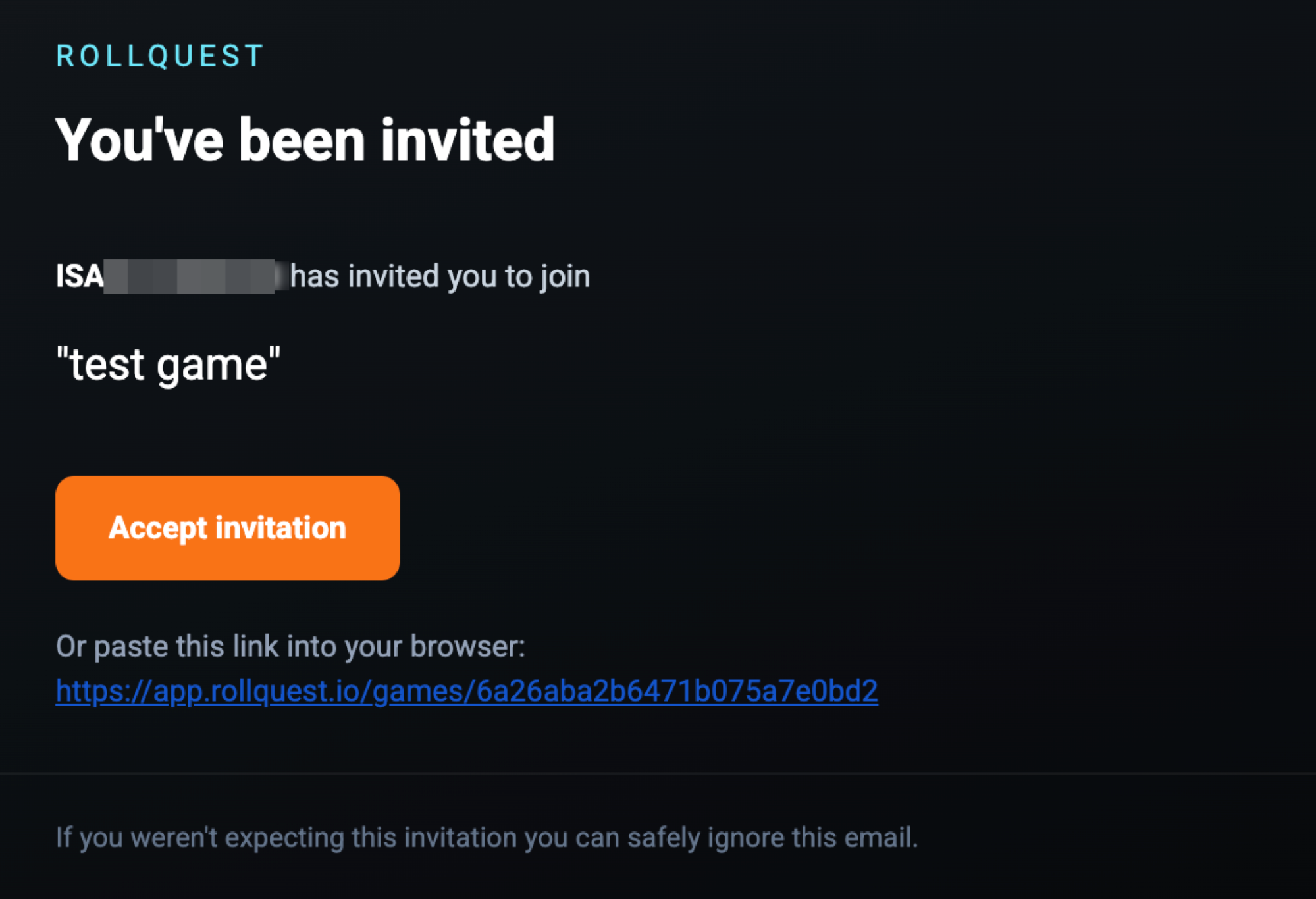
Open the email to view the invitation.
2. Review the Invitation Details
The email shows that you have been invited to join a RollQuest game.
It includes the name of the person who invited you and the name of the campaign. Review these details before accepting the invitation to make sure it is the correct game.
If you were not expecting the invitation, you can ignore the email.
3. Accept the Invitation
Click Accept invitation in the email. RollQuest opens in your browser and starts the process of adding you to the campaign.
If the button does not work, copy the link shown in the email and paste it into your browser address bar.
4. Sign In or Create an Account
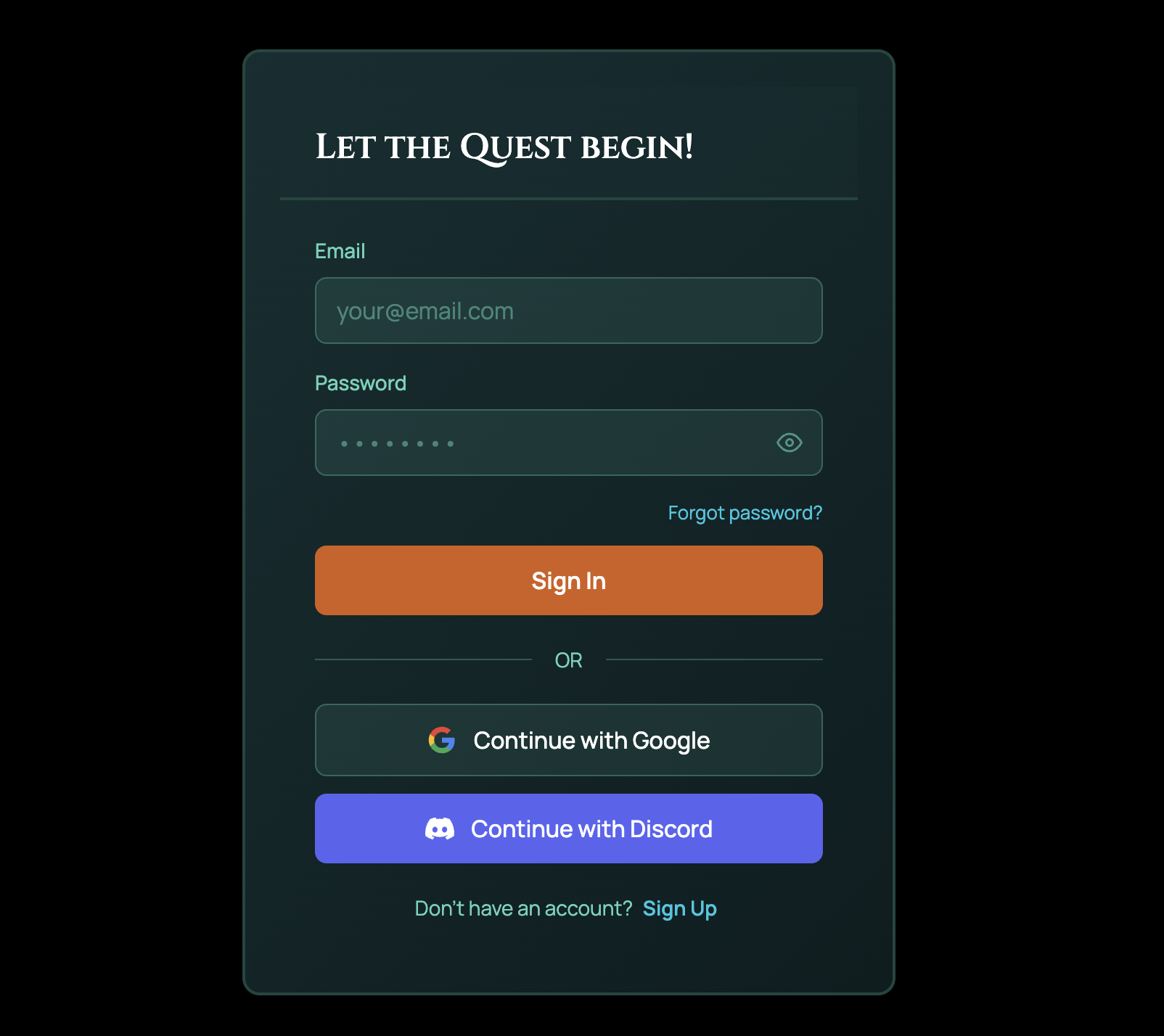
If you are not signed in, RollQuest asks you to sign in before joining the campaign.
Use your email and password, Google account, or Discord account to sign in.
If you do not have a RollQuest account, create one first. After creating and confirming your account, return to the invitation email and click Accept invitation again if needed.
5. Review the Campaign on Your Dashboard
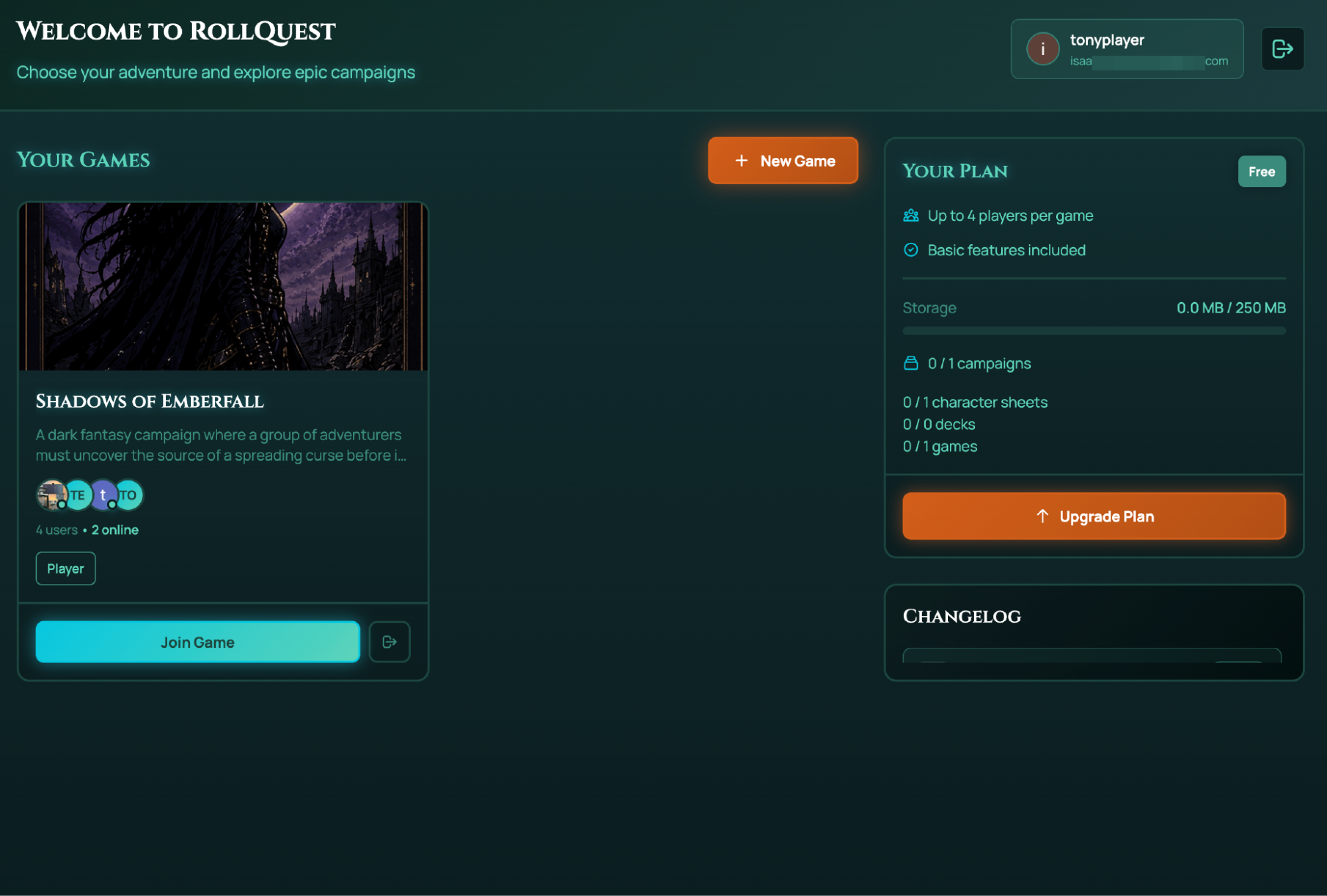
After accepting the email invitation and signing in, RollQuest takes you to your dashboard.
The invited campaign appears in the Your Games section. The campaign card shows the game name, game description, player avatars, the number of users in the game, and how many users are currently online.
The dashboard may also show your current plan on the right side of the screen, including your player limit, storage usage, campaign usage, and account limits.
6. Join the Campaign
In the Your Games section, find the invited campaign. Click Join Game to enter the campaign.
RollQuest then opens the game table where you can participate in the session with the Game Master and other players. Click the Play button to start the game.
Troubleshooting
I did not receive the invitation email
Check your spam or junk folder. Also, confirm with the Game Master that they entered the correct email address.
The Accept invitation button does not work
Copy the invitation link shown in the email and paste it directly into your browser.
The invitation opens but asks me to sign in
Sign in with your RollQuest account. If you do not have an account, create one first, then reopen the invitation.
I cannot see the campaign on my dashboard
Refresh the dashboard and check the Your Games section again. If the campaign still does not appear, ask the Game Master to send a new invitation.
The invitation has expired
Ask the Game Master to send a new email invitation or generate a new invite link.
I received an invitation I was not expecting
Do not accept invitations from unknown or unexpected sources. You can safely ignore the email.