Creating a Campaign from Scratch
Create a campaign from scratch when you want to build a new RollQuest game without using a pre-made content pack. This option gives you a blank campaign setup where you can add your own maps, images, tokens, assets, scenes, and campaign content as you build.
Before You Start
You must be signed in to your RollQuest account before creating a campaign.
1. Open Your Dashboard
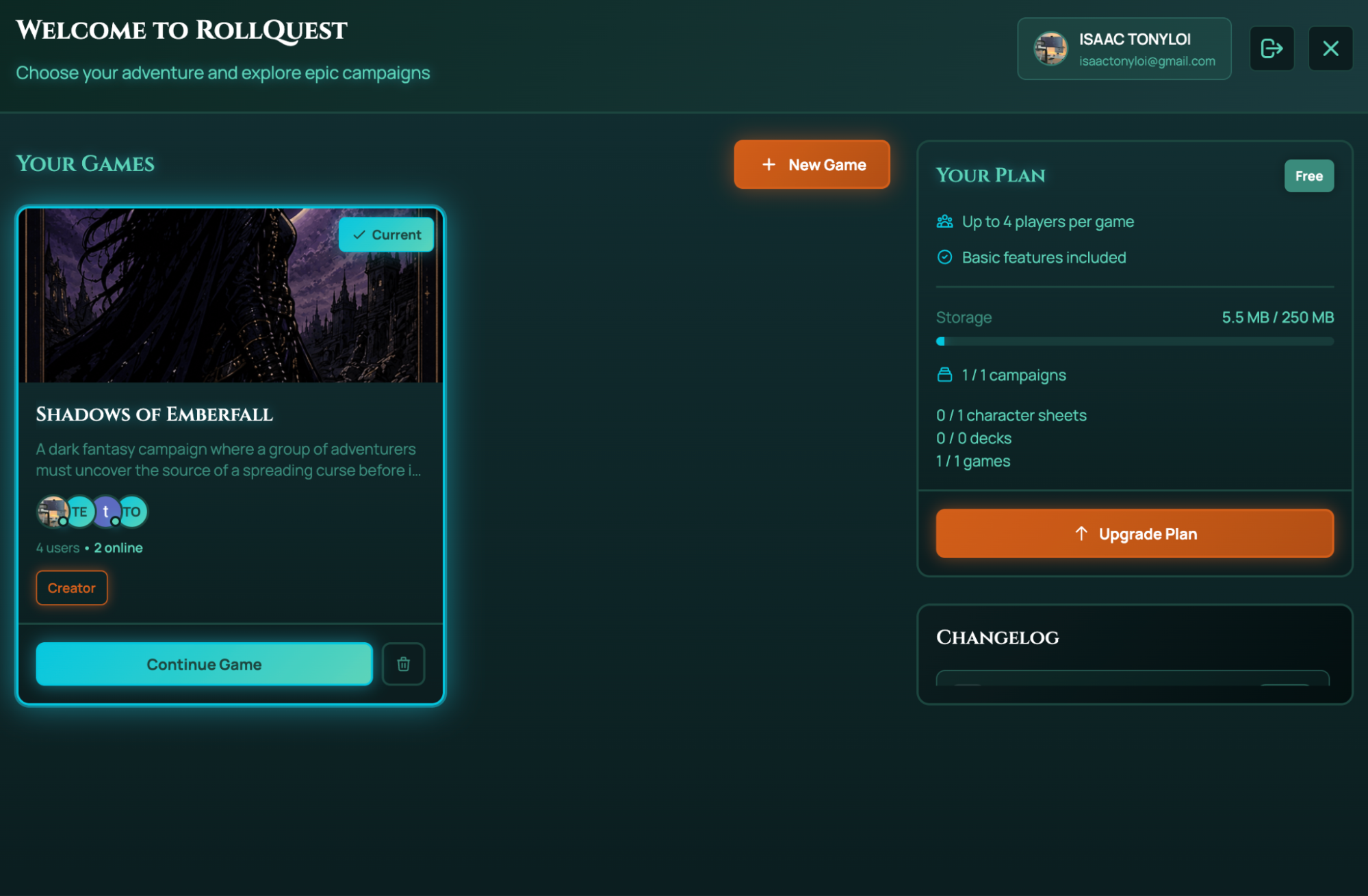
After signing in, RollQuest opens the dashboard. The dashboard shows the Welcome to RollQuest page, your current games, your account information, and your plan details.
To create a new campaign, click New Game.
2. Open the Create New Game Window
After clicking New Game, the Create New Game window opens. This is where you enter the basic details for your campaign and choose how the campaign should be created.
You can either use a content pack or start from scratch. For a blank campaign, choose the Start from Scratch option.
3. Enter the Game Name
In the Game Name field, enter the name of your campaign. The game name can be up to 50 characters.
4. Add a Campaign Description
In the Description field, enter a short description of your campaign. This field is optional and can be up to 500 characters.
Use the description to explain what the campaign is about, give players a quick summary, or add notes that make the game easier to recognize later.
5. Select Start from Scratch
Click Start from Scratch. This means the campaign will not include ready-made maps, tokens, or content. You can add your own images, tokens, scenes, and other campaign materials after the game has been created.
6. Choose a Game System
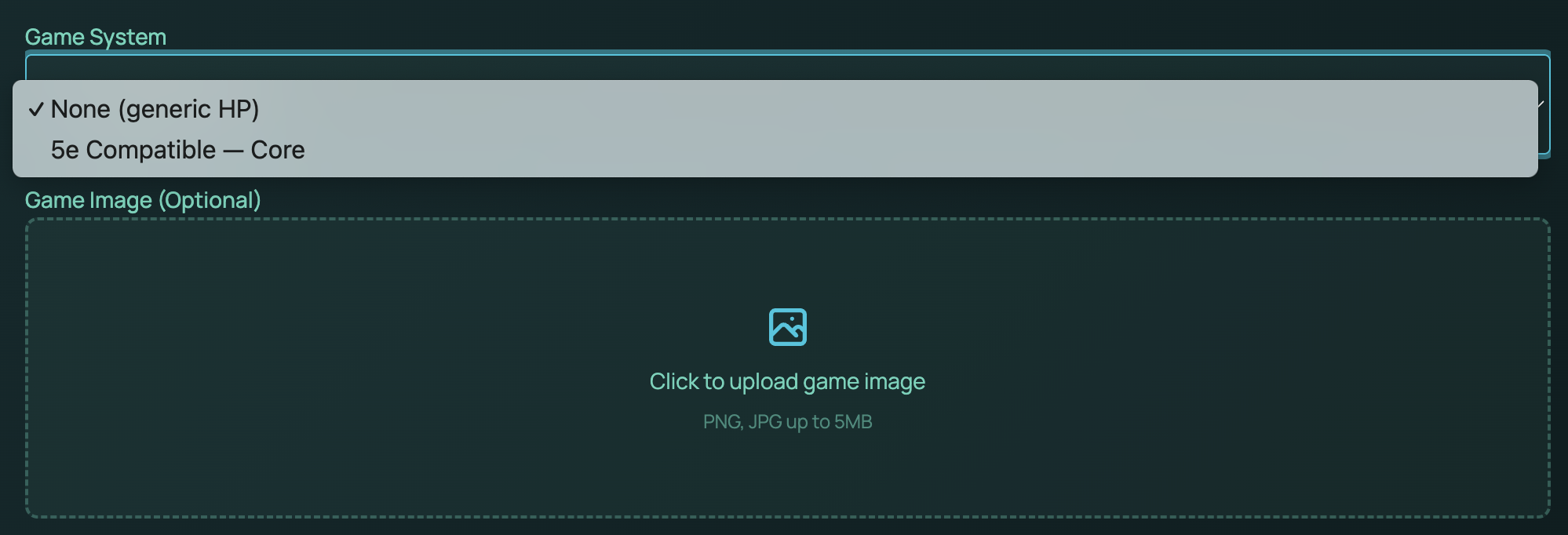
Use the Game System dropdown to choose the ruleset or character setup you want to use for the campaign. Here are the available options you can choose from:
None (generic HP) is selected by default. Use this option if your campaign does not need a specific ruleset, or if you only want a simple health-based setup.
Ashfall - Core is available for campaigns using the Ashfall core system. Select this option if your game is built around Ashfall rules and you want the campaign setup to match that system.
5e Compatible - Core is available for campaigns using a 5e-compatible ruleset. Select this option if your campaign is based on 5e-style gameplay, and you want the game setup to support that type of play.
7. Upload a Game Image
In the Game Image section, click the upload area to add an image for your campaign. RollQuest supports PNG and JPG images up to 5MB.
8. Create the Campaign
After entering the required details, click Create Game. If the button is not active, check that you have entered the required information, especially the game name.
RollQuest creates the campaign and adds it to your dashboard.
9. Confirm the Campaign on Your Dashboard
After the campaign is created, it appears in the Your Games section on the dashboard.
The campaign card shows the game name, description, player avatars, online user count, and your role in the game. The campaign may also be marked as Current if it is your active game.
10. Open the Campaign
Click Continue Game on the campaign card. RollQuest opens the game table, where you can begin setting up the campaign environment.
From inside the game, you can start adding players, enemies, NPCs, backgrounds, scenes, assets, character sheets, journal entries, lights, and game settings.