

Your first macro
Build a Stealth check that asks whether you have advantage, rolls with your sheet's bonus, posts a card and pops up the result, then put it on the Shortcut Bar.
A macro is a button that runs a list of steps for you (see Macros: what they are). You build one in the macro editor, which has two views of the same steps: Steps, where each step is a small form, and Text, where the whole macro is written out. This page uses the Steps view from start to finish, so you don't type any code, then shows the same macro as text. It's written for 5e and 5.5e, the fifth edition rules, with an Ashfall version at the end. Ten minutes is enough, and nothing posts to chat until you run the finished macro.
Plan: building and editing macros needs Pro, on your own account. Running them is free on every plan: once it's built, you can share it with the table if you're the Game Master (GM), the person running the game, on Starter or Pro.
What you'll build
When you press it, the macro:
- asks Roll Stealth with?: Normal or Advantage,
- rolls a d20 plus your character's Stealth bonus, twice and keeping the higher roll if you chose Advantage,
- posts a Stealth card to chat with the dice and the total, and
- pops the result up on your screen.
flowchart LR
  A["Ask: Roll Stealth with?"] --> B["Roll: 1d20 + Stealth"]
  B --> C["Chat card: Stealth"]
  C --> D["Pop-up: Stealth"]
You need a character in the game, so the macro has a Stealth bonus to read. Without one, sheet values count as 0.
Start a new macro
In a game, click Macros on the tool rail, the column of icons down the right edge. The Macros panel opens.
Click New macro. The editor opens, titled New macro, in the Steps view.
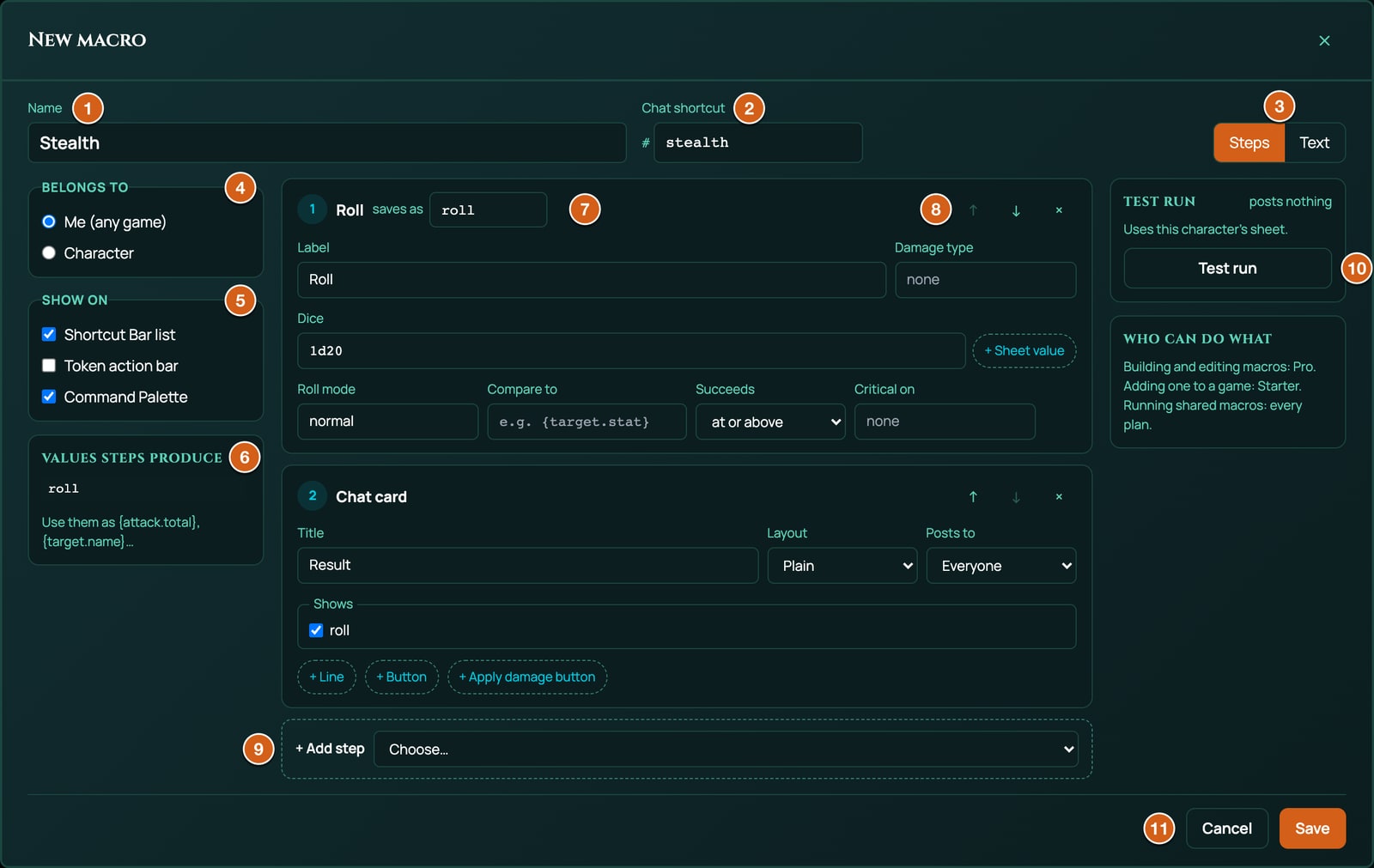
It already has two steps, so a new macro does something from the start: 1 Roll, which rolls
1d20and saves its result asroll, and 2 Chat card, which posts that roll to chat.In Name, at the top left, replace New macro with
Stealth. This is the name on the Shortcut Bar and in the panel.In Chat shortcut, type
stealth. Now#stealthin chat runs it. A shortcut is lower-case letters, digits and dashes, up to 32 characters, starting with a letter or a digit.Under Belongs to, on the left, leave Me (any game) chosen, so the macro comes with you into every game. Pick one of your characters instead to make it that character's macro, which the GM can run and edit too.
Roll the dice
The Roll step says what to roll.
- In step 1 Roll, change Label from Roll to
Stealth. The label names the roll on the card. - Click + Sheet value, beside Dice. A list of your character's values opens: each shows its label, such as Stealth, then its ID and its value, such as STE · 4. With no character to read, it says Open a character to pick from their sheet, or type @{FIELD_ID}.
- Click Stealth. Dice now reads
1d20 + @{STE}, and a chip under it shows Stealth · 4.
@{STE} means "the Stealth value on the character's sheet, when the macro runs". Every sheet value has a short ID like this, and the macro stores the ID, so it keeps working when the label changes. Leave the rest of the step as it is: Roll mode comes later, and Compare to is for a pass or fail, below.
Set up the chat card
The Chat card step posts the result to chat.
- In step 2 Chat card, change Title from Result to
Stealth. - Set Layout to Check. The layout is how the card looks: Plain, Attack, Check or Miss. Each has its own coloured stripe down the card's left edge, and Attack, Check and Miss also put a small tag with that word in the card's header.
- Leave Posts to on Everyone.
- Under Shows, leave roll ticked. Shows lists the result of every step that saves one: ticking roll puts your roll on the card, with its dice and total.
Ask about advantage
An Ask step asks a question when the macro runs, and saves the answer.
- At the bottom of the steps, open + Add step and choose Ask. Step 3 Ask appears, with the question Which one?, the answers Normal and Advantage, and saves as
answer. - Change Question to
Roll Stealth with?. - Change saves as, in the step's header, from
answertomode. That's the name you'll use to read the answer. - Click ↑ on step 3 twice. The question moves to the top, as step 1, so it's asked before the roll.
- In the Roll step, now step 2, type
{mode}in Roll mode, or pick it from the list that opens. The roll now uses the answer: Normal rolls once, Advantage rolls twice and keeps the higher.
Curly brackets around a name, {mode}, mean "the result that step saved". The Values steps produce box on the left lists every name you can use.
What an answer saves
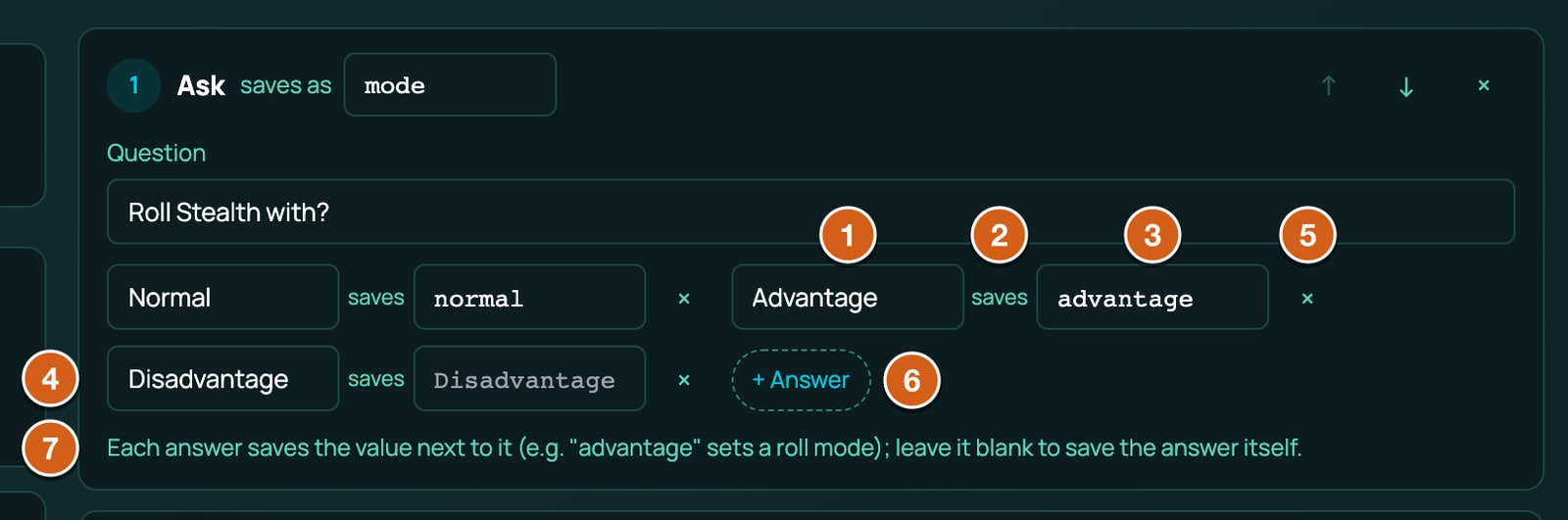
Each answer in an Ask step has two boxes, with the word saves between them:
- The label, on the left: what the person sees on the button, such as Advantage.
- The value it saves, on the right: what the macro keeps as
{mode}, such asadvantage. Left empty, it shows the label in grey, and the answer saves the label itself.
The hint under the answers says the same: Each answer saves the value next to it (e.g. "advantage" sets a roll mode); leave it blank to save the answer itself.
The two answers the step starts with save normal and advantage, which are roll modes. To add Disadvantage:
- Click + Answer in the Ask step. A new answer appears, labelled Option, with its value box empty.
- Type
Disadvantagein its label box. With the value box empty, it savesDisadvantage, and a roll mode can be written in capitals or not, so this rolls with disadvantage.
Change a label later, such as Normal to Straight, and the answer keeps the value it saves (normal), so the roll still works. An Ask holds up to 10 answers: at 10, + Answer goes.
Pop the result up on screen
A Pop-up step shows the result at the top right of your screen, like a roll from the character sheet.
- Open + Add step and choose Pop-up. Step 4 Pop-up appears at the end.
- Change Title from Result to
Stealth. - Leave Who sees it on Only you.
- Under Shows, make sure only roll is ticked.
The steps now read, from the top: 1 Ask, 2 Roll, 3 Chat card, 4 Pop-up.
Test it
The Test run box on the right tries the macro without posting anything.
- Check the line above the button: Uses this character's sheet. means it reads your character. No character sheet: sheet values count as 0. means it has no character to read.
- Click Test run. The question box opens for real, on top of the editor: pick Advantage.
- Under the button, the card it would post appears, with both d20s: the one that didn't count is struck through.
A test run asks its questions, picks targets and rolls real numbers, but it posts nothing to chat, throws no 3D dice, shows no pop-ups and plays nothing on the board. The buttons on its cards can't be pressed. Test run is greyed out while the macro has a problem to fix.
Save it
Click Save, at the bottom right. The editor closes and Stealth is in Mine, with #stealth · Me · Shortcut Bar, palette under its name.
If Save is greyed out, the bottom of the editor lists up to three problems, such as Give the macro a name. Fix them and Save comes back. Every message is in When Save is greyed out, below.
Put it on the Shortcut Bar
- Click Shortcut Bar at the bottom of the board, then an empty slot. Assign to Shortcut Bar Slot opens.
- Under Macros, click Stealth. Under its name you see its first steps: Roll Stealth with? → Stealth: 1d20 + @{STE} → Card: Stealth.
- Click the slot. The question box opens: press 2 for Advantage. The dice land, the Stealth card posts to chat, and the pop-up appears at the top right.
The slot runs the macro as it's saved now, so later edits reach it, and it shows the macro's name as it is now. Clicking the slot folds the bar away as the macro starts. Open the bar again while the macro is still running, for example while it waits for your answer, and the slot shows RUNNING. If the macro is stopped part way, such as by runaway protection, the slot shows NOT RUN for 8 seconds, with the reason when you hover over it. Press Ctrl (Cmd on a Mac) with the slot's number to run it with the bar closed. You can also run it by typing #stealth in chat, /macro stealth in the command palette (Ctrl+K), or Run in the Macros panel.
Add Disadvantage in the Text view
The Text view shows the same steps written out, one per line. This section adds the Disadvantage answer there, as a first look at the Text view. If you added it with + Answer already, the first line ends |Disadvantage} instead: skip step 3.
Click Macros on the tool rail, then the three dots on the Stealth row, then Edit.
Click Text, at the top right of the editor. The macro appears as text:
?{Roll Stealth with?|Normal=normal|Advantage=advantage} -> mode
[[1d20 + @{STE}]] label="Stealth" mode={mode} -> roll
&{card:check} "Stealth" show=roll
end
&{notify} "Stealth" show=roll
end
In the first line, click right before the
}and type|Disadvantage=disadvantage. The line now reads:?{Roll Stealth with?|Normal=normal|Advantage=advantage|Disadvantage=disadvantage} -> modeEach answer is written
Label=value: the label is what you see, the value is what the macro saves. An answer written without=valuesaves its label. A roll mode isnormal,advantageordisadvantage, in capitals or not.Under the text, the green line reads Reads as 4 steps. If it's red, it names the line with the problem.
Click Save.
Line by line:
| Line | What it does |
|---|---|
?{Roll Stealth with?|...} -> mode |
The Ask step: the question, then each answer, and -> mode saves the answer as mode. |
[[1d20 + @{STE}]] label="Stealth" mode={mode} -> roll |
The Roll step: the dice between [[ and ]], its label, the roll mode read from mode, and -> roll saves the result as roll. |
&{card:check} "Stealth" show=roll ... end |
The Chat card step: Check layout, the title, and the results it shows. end closes the card. |
&{notify} "Stealth" show=roll ... end |
The Pop-up step, shown only to you. |
You can switch between Steps and Text whenever you like: each rebuilds the other from the same steps. The whole language is in The macro language (Text view).
Make it pass or fail
A roll can be compared with a number, such as a Difficulty Class (DC) of 15, the total the GM says you need. Then the macro can post a different card for a pass and a fail.
- Open the macro with Edit and stay in the Steps view.
- In the Roll step, type
15in Compare to. Leave Succeeds on at or above: a total of 15 or more is a hit. - Open + Add step and choose If / otherwise. A new If step appears at the end. Its condition already reads
{roll.outcome}is one ofhit, crit: "if the roll hit". - Click ↑ on the If step until it sits directly under the Chat card step.
- Delete the old Chat card step with its ×.
- In the If step's Then list, open + Add step, choose Chat card, and set Title to
Stealth: unseen, Layout to Check, and tick roll under Shows. - In its Otherwise list, add another Chat card: Title
Stealth: spotted, Layout Miss, and tick roll. - Click Test run a few times to see both cards, then Save.
As text, the macro is now:
?{Roll Stealth with?|Normal=normal|Advantage=advantage|Disadvantage=disadvantage} -> mode
[[1d20 + @{STE}]] label="Stealth" mode={mode} vs=15 -> roll
if {roll.outcome} in (hit, crit)
  &{card:check} "Stealth: unseen" show=roll
  end
else
  &{card:miss} "Stealth: spotted" show=roll
  end
end
&{notify} "Stealth" show=roll
end
vs=15 is Compare to. With it, the card says Hit · against 15 or Miss · against 15, and the pop-up shows a HIT or MISS badge. How hits, misses and critical hits are worked out is in Dice, values and outcomes, and every way to write a condition is in The macro language (Text view).
The same macro in Ashfall
In Ashfall you roll a d100 and pass if you roll your skill or lower. Build it the same way, with these changes:
- In the Ask step, rename the Advantage answer to Fortune (it keeps saving
advantage), then click + Answer and add Misfortune, typingdisadvantagein its value box. Fortune is Ashfall's roll twice and keep the lower. On a roll-under roll, the roll modeadvantagekeeps the lower d100, so Fortune savesadvantage, and Misfortunedisadvantage. - In the Roll step, set Dice to
1d100, type@{STEALTH}in Compare to, and set Succeeds to at or below. Leave Critical on empty: on a roll-under roll, the editor warns you that a critical number there counts the wrong way round.
?{Roll Stealth with?|Normal=normal|Fortune=advantage|Misfortune=disadvantage} -> mode
[[1d100]] label="Stealth" mode={mode} vs=@{STEALTH} beat=under -> roll
&{card:check} "Stealth" show=roll
end
&{notify} "Stealth" show=roll
end
The card then says Hit · needed 40 when you pass and Miss · needed 40 when you fail: macros use hit and miss for every check. With Fortune, it shows both d100s, strikes through the higher, and prints advantage, the roll mode you picked. beat=under is at or below in the Text view. More on Ashfall in Macros for Ashfall.
The editor, part by part
Across the top
| Part | What it does |
|---|---|
| Name | The macro's name, on the Shortcut Bar and in the panel. Required. Up to 80 characters. |
| Chat shortcut | The word after # that runs it from chat, such as stealth. Lower-case letters, digits and dashes, up to 32 characters, starting with a letter or a digit. Capitals are turned into lower case. Optional, but without one it can't be run from chat or the command palette. |
| Built for and a system | Only on ready-made macros: the game system it was made for. |
| Steps / Text | Switches between the forms and the text. Both show the same steps. |
The left column
| Part | What it does |
|---|---|
| Belongs to | New macros only. Me (any game) makes it one of your own macros. A character's name makes it that character's macro, which reads that character's sheet; the GM sees every character in the game here. Once saved, this box says instead One of your own macros., Belongs to a character. or A game macro. Change who can run it from the library. |
| Show on | Where it's offered. Shortcut Bar list: in the Shortcut Bar's Macros list (on for a new macro). Token action bar: on the bar above the Shortcut Bar when its token is selected (off for a new macro). Command Palette: suggested when you type /macro in the command palette (on for a new macro). Unticked, typing its shortcut in full there still runs it. |
| Values steps produce | Every name a step saves its result as, such as mode and roll, with a reminder: Use them as {attack.total}, {target.name}… |
The steps (Steps view)
Each step is a card with its number, its kind (such as Roll), saves as with its result name (for steps that save one), and three buttons: ↑ and ↓ move it up or down, × deletes it with no question asked. An If step's number is purple, and it holds two lists, Then and Otherwise. A chat card's button holds a list of its own. Steps inside an If or a button are numbered under it, such as 3.1.
+ Add step at the bottom of every list adds a step to the end of that list. Its menu names each kind with a hint, such as Roll (Dice plus sheet values) and Ask (A question with choices, or a free answer). The GM's menu also has Music, Stop music and Switch scene. Every kind is described in Every step, one by one.
A step can't be dragged into an If or a button: add a new one inside, then delete the old one.
The Text view
A box with the whole macro as text, under The same steps as text. Switching views loses nothing. It's read again as you type: the line under it says Reads as N steps in green, or names the problem in red, such as Line 3: This "if" is missing its "end". Syntax opens a short reminder of how each step is written. While the text has a problem, you can't switch back to Steps or save. See The macro language (Text view).
The right column
| Part | What it does |
|---|---|
| Test run (posts nothing) | Whose sheet the test reads, and the Test run button. The cards it would post, the whispers it would send (such as Whisper to the GM: and the text), and any problems appear under the button. Stopped: a question or target was cancelled. means you pressed Esc. |
| Who can do what | Building and editing macros: Pro. Adding one to a game: Starter. Running shared macros: every plan. |
The bottom
| Part | What it does |
|---|---|
| Problems | Up to three things to fix before you can save, then …and N more. For a game macro, with nothing to fix: Saving updates the macro for everyone it is shared with. |
| Warnings | Up to three things that save but probably don't do what you meant, in amber, then …and N more. They don't stop Save. |
| Cancel | Closes the editor without saving. |
| Save | Saves the macro. Greyed out while there's a problem. |
When Save is greyed out
The bottom of the editor says what's wrong. Steps are numbered as in the Steps view, with then, otherwise or a button's label for steps inside, such as Step 3.then.1.
| Message | What to do |
|---|---|
| Give the macro a name. | Type a Name. |
| A chat shortcut is lower-case letters, digits and dashes. | Take out spaces and other marks, such as my attack or attack!: use my-attack. |
| Add at least one step. | Add a step with + Add step. |
| Step 2: name its result with letters, digits and _. | Fix saves as: start with a letter, then letters, digits or _, such as attack2 or big_hit. No spaces or dashes. |
| Step 4: "roll" is already used by another step. | Every result name must be different, even in the Then and Otherwise of the same If. Rename one, such as roll2. |
| Step 1: and a message about dice | The Dice can't be rolled by a macro. See Dice, values and outcomes. |
| Step 1: write the question. | An Ask step needs its Question. |
| Step 2: a card needs a title or something to show. | Give the chat card a Title, tick something under Shows, or add a line. |
| Step 2: a pop-up needs a title or something to show. | The same, for a pop-up. |
| Step 3: write the whisper. | A Whisper step needs its Text. |
| Step 3: say which #macro to run. | A Run macro step needs a Macro shortcut. |
| Step 3: pick a table. | A Rollable table step needs a Table. |
| Step 3: say which weapon swings. | A Weapon swing step needs its Weapon. |
| Step 3: an if needs a condition. | An If step needs at least one condition. |
| Step 2: button 1 needs a label. | Give the chat card's button a label. |
| Step 2: say how much damage to apply. | Fill in the Amount of an Apply damage button. |
The editor also stops you saving a macro that goes over a limit, because RollQuest would drop the extra without a word when it stores it. Each message says what would be lost:
| Message | What to do |
|---|---|
| This macro has 61 steps, counting those inside if branches and buttons. A macro can have at most 60: step 61 and everything after it would not be saved. | Move a part of it into a macro of its own, and run that with a Run macro step. |
| Step 1: a question can have at most 10 answers (it has 11). The extra answers would not be saved. | Remove an answer with its ×. |
| Step 2: pick at most 10 targets (it asks for 12). | Lower How many to 10 or fewer. |
| Step 3: an if can test at most 6 conditions (it has 7). The extra conditions would not be saved. | Remove a condition, or split it into two ifs. |
| Step 2.then.1.then.1.Roll damage.1.then.1: steps nested more than 4 levels deep (an if inside a button inside an if…) would not be saved. Move them up a level. | Move the steps the message names up a level. The path counts down through each if (then or otherwise) and each button (by its label). |
| Step 2: a card can have at most 8 lines (it has 9). The extra lines would not be saved. (or a pop-up) | Remove a line. |
| Step 2: a card can show at most 6 results (it shows 7). (or a pop-up) | Untick a result under Shows. |
| Step 2: a card can have at most 4 buttons (it has 5). The extra buttons would not be saved. | Remove a button. |
In the Steps view you rarely meet these, because + Answer, + Line, + Button and + Apply damage button go when a step reaches its limit, and a list nested too deep says Steps can't go deeper than 4 levels; anything here is not saved. in place of + Add step. They mostly come from the Text view or a pasted macro.
If Save fails after you click it, the message shows in the same place, such as You can keep up to 200 macros. Delete one to add another. Without Pro, clicking Save opens the box that says which plan includes building macros.
Warnings beside Save
Some things save fine but probably don't do what you meant. The editor lists them in amber beside Save, and lets you save anyway:
| Warning | What it means |
|---|---|
| Step 2: "Critical on 20" counts a high roll as a critical and a 1 as a fumble, but this roll succeeds at or below its target, so those are backwards. Clear "Critical on" for a roll-under roll. | A roll-under roll, such as an Ashfall test, has Critical on set. Clear it. |
| Step 2: a d100 roll compared to a target usually succeeds at or below it (roll under). This one succeeds at or above; set "Succeeds" to "at or below" if that is what you meant. | A d100 roll has Compare to but Succeeds is still at or above. |
| Step 4: a Sheet action with no Item id does nothing when it runs. | Fill in the Item id, or remove the step. |
| Step 4: a Sheet action with no Action id is dropped when you save. | Fill in the Action id, or the step goes when you save. |
| Step 1: a Sound step with no sound id does nothing, and is dropped when you save. | The same for a Music step (no track id), Switch scene (no scene id) and Change phase (no scene or phase id). |
| Step 3: "Apply damage" has no damage type. On this system, damage without a type does nothing. | Only in a game system whose damage needs a type. Give the button a Type. |
Change it later
- Edit: click the three dots on its row in the Macros panel, then Edit. Your Shortcut Bar slots, chat shortcut and token action bar run the new version straight away.
- Rename: change Name and save. Its Shortcut Bar slots show the new name.
- Delete: the three dots, then Delete, then Delete again. A slot that ran it says That macro was deleted. the next time you press it, and empties.
Related
Macros: what they are · The macro language (Text view) · Dice, values and outcomes · Every step, one by one · Questions, cards and buttons · Shortcut Bar