

Macros: what they are
A macro is a button you set up once that asks, targets, rolls and posts the result for you, so the things you do every turn take one click.
Think of the attack you make every round: choose whether you have advantage, pick the goblin, roll a d20 with your bonuses, check the total against the goblin's armour, roll damage if it hits, and ask the Game Master (GM), the person running the game, to take the damage off the goblin. A macro is that list of steps, saved under a name. Press it on the Shortcut Bar, or type its shortcut, such as #attack, in chat, and RollQuest asks your questions, rolls with the numbers on your character sheet and posts a chat card with a Roll damage button on it. Players use macros for attacks, checks and spells; GMs use them for secret rolls, ambushes and scene changes. You don't write any code: start with a ready-made macro, build your own with forms in the editor's Steps view, or type it in the Text view.
Plan: running macros is on every plan, and so are adding a ready-made macro, fixing a missing value, switching a stopped macro back on and deleting one. Building and editing macros needs Pro, on your own account. Adding a macro to a game for the table needs the GM to be on Starter or Pro. Players on any plan can run the macros their GM shares.
What a macro can do
A macro is a list of steps that run in order, from the top. Each step does one thing:
- Roll dice, adding numbers from your character sheet, such as your Strength modifier, and compare the total with a target number to see whether it hits or misses.
- Ask you something when you press it, such as Normal, Advantage or Disadvantage, or a bonus to type in.
- Target a token on the board and read one of its stats, such as its armour class (AC), the number an attack has to reach.
- Use your Weapon: the one your character has equipped, with its attack and damage worked out from the sheet (5e, 5.5e and Ashfall).
- Do one thing if something is true and another otherwise, such as a hit card on a hit and a miss card on a miss.
- Post a Chat card with the results, and buttons such as Roll damage and Apply damage.
- Show a Pop-up on screen with the result, marked HIT, MISS, CRIT or FUMBLE.
- Whisper a note to the GM or to yourself.
- Roll one of the game's rollable tables, press an action on your character sheet, play a sound, wait a few seconds, or run another macro.
- For the GM only: switch the scene or its phase, and play or stop music.
Every step, with its settings, is in Every step, one by one.
A few things a macro can't do, so you know before you build:
- It can't change a number on a character sheet. Damage goes through the GM's Apply damage button, and a Sheet action step spends whatever the sheet's own button spends, such as a use of an item.
- It can't heal. Apply damage refuses an amount below zero, so a healing macro posts the amount on a card and the GM heals the token by hand (see Damage and healing).
- It can't move tokens, add or remove conditions, or open another character's sheet. From a target it reads one token stat, such as AC.
- It has no loops, and no maths outside a roll: you add and subtract inside the dice, and compare one value with another.
- It can't roll keep-highest, exploding or success-counting dice, such as
2d20kh1or1d6!. Advantage and disadvantage are a setting on the roll instead. See Dice, values and outcomes. - Nothing a macro does gets round the game's rules: every roll is checked by RollQuest before it posts, and damage only lands when the GM presses Apply damage.
How a macro runs
Here is the ready-made Weapon attack for 5e and 5.5e, from the moment you press it:
flowchart TD
  A["You press the macro"] --> B["Ask: Normal, Advantage or Disadvantage?"]
  B --> C["Weapon: the one your character has equipped"]
  C --> D["Target: the token you attack"]
  D --> E["Roll the attack against the target's AC"]
  E --> F["The weapon's swing plays on the board"]
  F --> G{"Hit or critical hit?"}
  G -- "Yes" --> H["Card in chat with Roll damage and Apply damage, and a pop-up"]
  G -- "No" --> I["Miss card in chat, and a pop-up"]
  H --> J["You press Roll damage: the damage joins the card"]
  J --> K["The GM presses Apply damage: the target loses that many hit points"]
With one weapon equipped, the macro uses it without asking. The Unarmed Strike and Improvised Attack every 5e and 5.5e character carries don't count, so it asks Which weapon? only when two or more weapons are equipped, and Nothing is equipped. Attack with? when none is. See Ready-made macros.
The questions come up one at a time, in a box titled with the macro's name. Press a number key to pick an answer, or Esc to stop the macro. A macro you stop posts nothing more, but anything it already posted stays in chat.
The same macro can be written out as text. This is a whole macro that rolls a d20, adds 5 and posts the result to chat:
[[1d20 + 5]] label="Check" -> roll
&{card:check} "Check" show=roll
end
You don't have to type macros: the editor's Steps view builds the same thing from forms, and you can switch between the two views at any time. See Your first macro and The macro language (Text view).
Where a macro lives
Every macro belongs somewhere, and that decides who sees it and whose character sheet it reads:
| Belongs to | What it means | Who runs it | Who edits it |
|---|---|---|---|
| Me (any game) | One of your own macros. It comes with you into every game you play in. | Only you | You |
| A character | Belongs to one character in one game, and reads that character's sheet. | That character's player and the GM | That character's player and the GM |
| The game | A macro the GM has added to the game for the table. | Everyone at the table, chosen players, or only the GM: the GM decides | The GM |
You pick Me (any game) or one of your characters under Belongs to when you build a macro. A ready-made macro you add is one of your own (Me).
Your own macros are private: nobody else can see or run them, not even the GM. When the table should have a macro, the GM adds one of their own to the game. See Share, run and fix macros.
You can keep up to 200 macros of your own and for your characters, and a game holds up to 200 game macros.
Who can do what
| What | Who |
|---|---|
| Run a macro you can see | Everyone, on every plan |
| Add a ready-made macro | Everyone, on every plan |
| Fix a missing value (Needs attention), switch a stopped macro back on, delete your own macros | Everyone, on every plan |
| Build a macro (New macro), Edit one, Customise a ready-made one, Copy to my macros | Pro, on your own account |
| Add to game, and change Who can run it | The GM, on Starter or Pro |
A button that needs a plan you don't have wears a crown. Clicking it opens a box that says which plan includes it, instead of doing it.
Open the Macros panel
The Macros panel lists every macro you can run in this game, and it's where you add, build and fix them.
- Open a game. The panel is only there inside a game.
- Click Macros on the tool rail, the column of icons down the right edge (hover over an icon to see its name). The panel opens beside the board.
The GM also finds Macros in the menu (the three lines at the top left), under Game Master tools. On a narrow screen there's no tool rail: Macros is in the menu, under Your tools.
The Macros panel, part by part
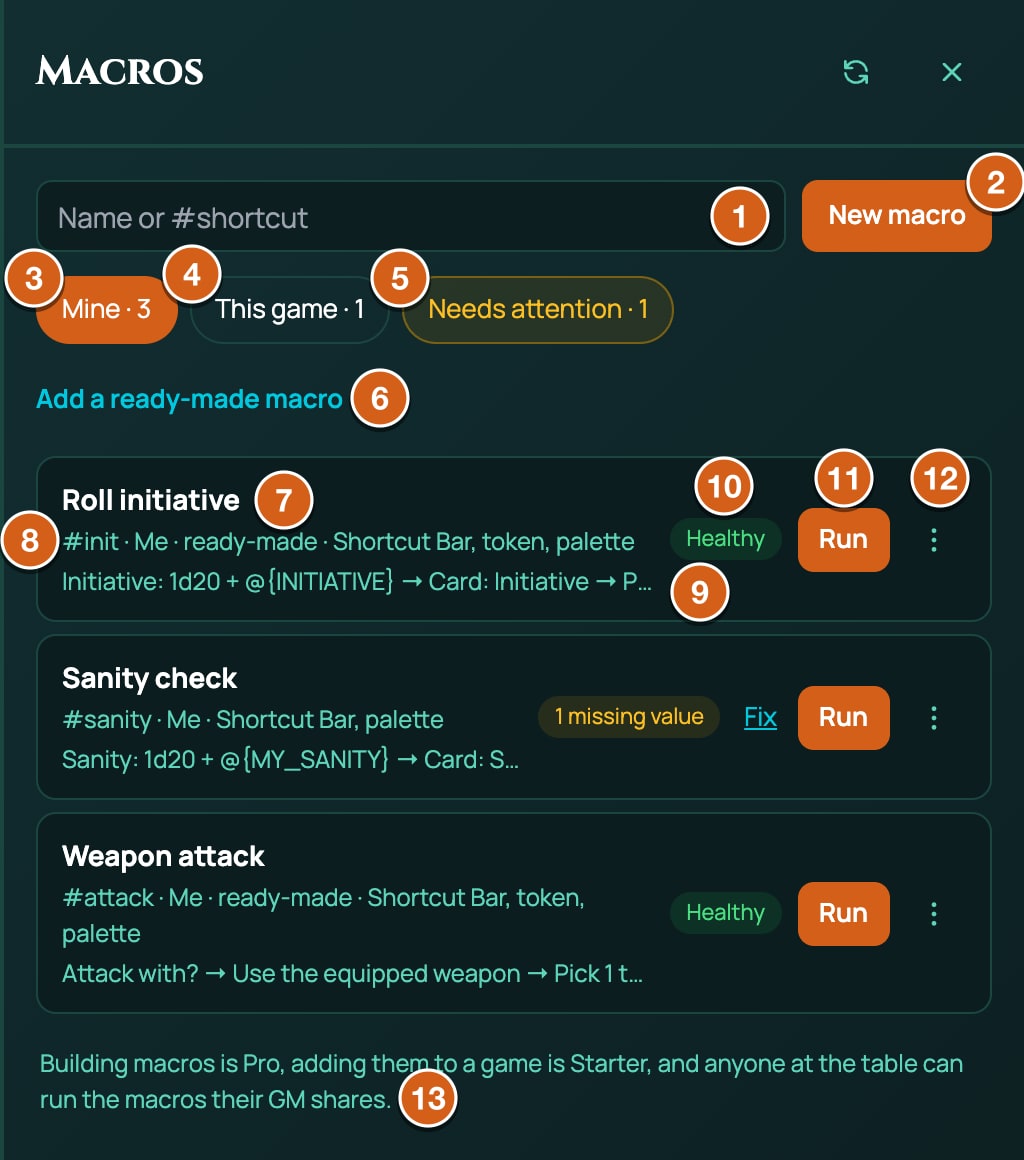
| Part | What it does |
|---|---|
| Refresh (top of the panel) | Loads your macros again, such as after a player adds one. |
| Search box (Name or #shortcut) | Narrows the list to macros whose name, or shortcut, contains what you type. With no match it says No macros match. |
| New macro | Opens the editor with a new macro. Hover: Build a new macro. Without Pro it wears a crown (hover: Building macros is a Pro feature) and opens the upgrade box. |
| Mine and a count | Your characters' macros, then your own. For the GM, this includes every character macro in the game. |
| This game and a count | The macros the GM has added to the game that you can run. The GM sees all of them. |
| Needs attention and a count | Only shows when a macro uses a value that's gone from the character sheet. Click it to fix them: see Share, run and fix macros. |
| Add a ready-made macro | On Mine, once you have macros of your own: the ready-made macros for your game's system, folded away above your list. Click it to open them. |
| The list | One row for each macro (see below). |
| The note at the bottom | Building macros is Pro, adding them to a game is Starter, and anyone at the table can run the macros their GM shares. |
The ready-made macros made for your game's system are always on Mine while the search box is empty, each with Add and Customise. See Ready-made macros.
- While you have no macros of your own, they're open: the panel says One click for the things you do every turn, and lists them under Ready-made for and your game's system, such as Ready-made for 5e Compatible.
- Once you have one, they fold into Add a ready-made macro, at the top of the list. Click it to open them, and again to fold them away.
Only macros you made yourself count. The players' character macros the GM sees on Mine don't fold the GM's ready-made macros away.
With nothing in This game, the GM sees Add one of your macros to the game from its menu. and a player sees Your GM has not shared any macros yet.
A macro's row
Each row shows:
- The macro's name.
- Its shortcut, where it belongs and where it shows, such as #attack · Me · ready-made · Shortcut Bar, token, palette. Where it belongs is Me, Me · ready-made, Character, Game · everyone, Game · chosen players or Game · GM only. Where it shows is any of Shortcut Bar, token and palette, or Hidden when none is ticked.
- Its first three steps, joined by arrows, such as Attack with? → Use the equipped weapon → Pick 1 target → ….
- A badge saying how it is (below).
- Run, which runs it now. It's greyed out while the macro is running, while it's switched off, and while macros are paused on your account.
- Fix, next to an amber badge: opens Needs attention.
- Switch on, next to a Switched off badge, on your own macros (and on game macros for the GM).
- The three dots (hover: More actions for and the macro's name): the macro's menu.
The badge shows the first of these that's true:
| Badge | What it means |
|---|---|
| Switched off (red) | RollQuest stopped it for running away, such as starting too many times in a few seconds. Hover over it for the reason. It won't run until you click Switch on. See Share, run and fix macros. |
| Needs a newer RollQuest | It was saved by a newer version of RollQuest than the page you have open. Reload the page. |
| Built for and a system, such as Built for 5e Compatible | A ready-made macro made for another game system than this game's. Its sheet values may not exist here. |
| 1 missing value, 2 missing values (amber) | It uses a sheet value your character doesn't have any more. It still runs, counting that value as 0, until you fix it. |
| Running | It's running now. |
| Did not run (red) | A moment ago it didn't run, or was stopped part way, such as by runaway protection. |
| Healthy (green) | Nothing wrong. |
A macro's slot on the Shortcut Bar shows its run state too: RUNNING while it runs, and NOT RUN when it didn't run or was stopped part way, such as by runaway protection. Hover over NOT RUN to see Did not run: and the reason. Pressing a slot folds the bar away, so you see these only when you open the bar again: see Share, run and fix macros.
The three-dot menu holds what you can do to that macro:
| Item | What it does | Who sees it |
|---|---|---|
| Edit | Opens the macro in the editor. Needs Pro. | Your own macros, your characters' macros, and game macros for the GM |
| Add to game | Adds a copy of one of your own macros to the game, for the players you choose. Shows Add to game (Starter) without the plan. | The GM, on their own macros |
| Who can run it | Changes who at the table can run a game macro. | The GM, on game macros |
| Copy to my macros | Makes a copy of a game macro among your own, named with (copy) on the end, for you to edit. Shows Copy to my macros (Pro) without Pro. | The GM, and players when the GM allows copies |
| Delete | Asks Delete this macro?, then deletes it for good. A game macro is deleted for everyone in the game. | Whoever can edit it |
Where you run a macro from
Every way of running a macro runs it as it's saved now, so an edit you make later reaches all of them.
| From | How |
|---|---|
| The Macros panel | Click Run on its row. |
| The Shortcut Bar | Click an empty slot, pick the macro under Macros, then click the slot, or press Ctrl (Windows) or Cmd (Mac) with the slot's number. |
| Chat | Type the macro's shortcut on its own, such as #attack, and press Enter. The macro runs instead of posting the text. Chat's /help lists this as #<shortcut>. |
| The command palette | Press Ctrl+K (Cmd+K on a Mac) and type /macro attack (with or without the #). As you type, the palette suggests your macros by shortcut and name. |
| The token action bar | Select one token on the board: its macros appear in a bar above the Shortcut Bar. |
| A chat card | Press a button on a card a macro posted, such as Roll damage. |
The chat shortcut must be the whole message: #attack on its own runs the macro, but I attack! #attack posts as ordinary text. If nothing you can run has that shortcut, a message says No macro called #attack. In the command palette, /macro on its own says Which macro? e.g. /macro attack.
The palette only suggests macros that have Command Palette ticked under Show on in the editor (it's ticked for a new macro). Untick it to keep a macro out of the suggestions: typing its shortcut in full still runs it.
When two macros share a shortcut, a character's macro wins over one of your own, and one of your own wins over a game macro. For the GM, the character macros include every player's, so give your own macros shortcuts the players won't use.
The token action bar
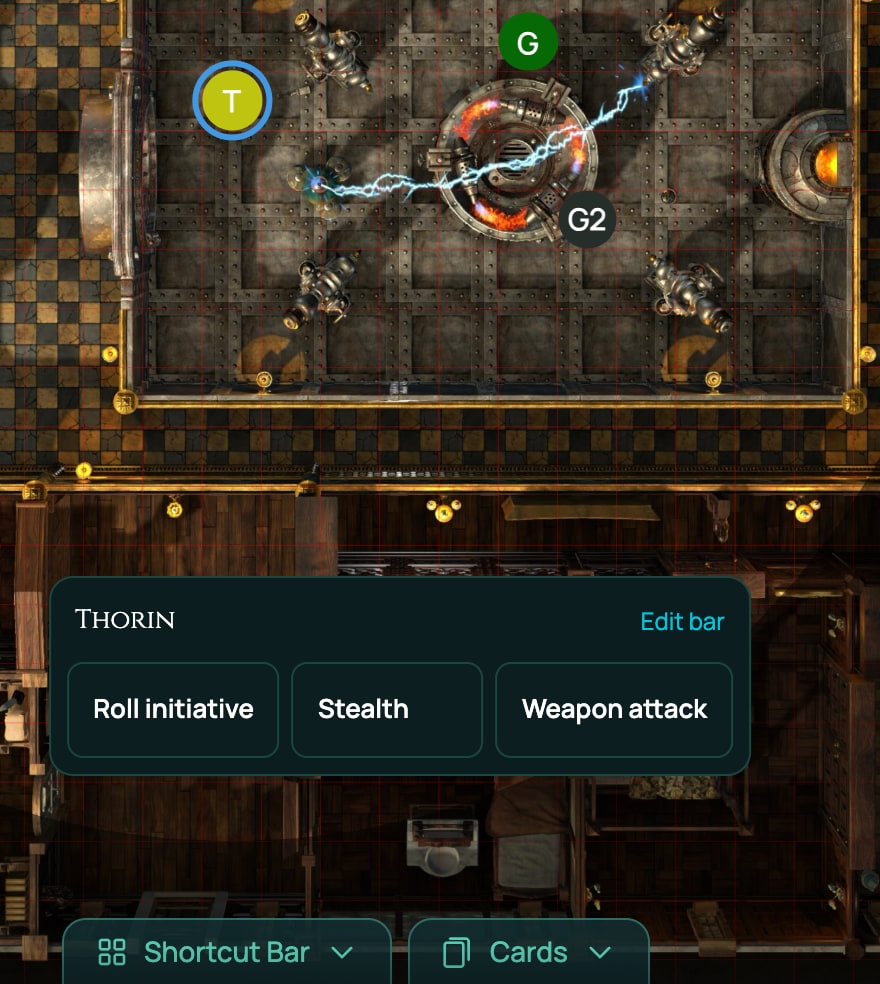
Select exactly one token and a bar appears directly above the Shortcut Bar, headed with the token's name. It holds:
- the macros of that token's character that have Token action bar ticked under Show on in the editor, and
- when the token is yours (for the GM, any token): your own macros and the game's macros with Token action bar ticked.
Up to five show at once; ⋯ at the end shows the rest. Hover over a button to see its shortcut. A dot on a button means the macro was saved by a newer version of RollQuest: reload the page. Edit bar opens the Macros panel. To put a macro on the bar or take it off, edit the macro (Pro) and tick or untick Token action bar under Show on.
A macro run from the token action bar reads the character sheet of that token, so one macro of your own works for each of your characters.
The bar's token is the one acting, never the target. A Target step that would take the selected token leaves the bar's own token out, and asks you which token to target instead. So the ready-made Weapon attack on the bar asks Pick a target rather than attacking your own character.
What you see when it runs
- Questions come up one at a time in a box titled with the macro's name. Pick an answer with the mouse, or press its number key (1 to 9). A question with no answers to pick has a box to type in: press Enter or click Continue. Esc, the Esc button or a click outside the box stops the macro. On a phone the box comes up from the bottom of the screen.
- Picking a target: the box says Pick a target (or Pick up to 3 targets) and lists the tokens on the board, each with the stat the macro reads, such as its AC. Click one, then Use target. If you select the token on the board before you run the macro, it's used without asking (but not from the token action bar, whose own token is never the target).
- Chat cards post to chat like any roll, with each die, the total, and whether it hit. Who sees a card is set on the card: everyone, or only you and the GM.
- Pop-ups appear at the top right of the screen with the result, and a HIT, MISS, CRIT or FUMBLE badge when the roll was compared with something. They go after 15 seconds.
- Problems: if something went wrong, such as a sheet value that's missing, a note in chat that only you see says the macro ran with a problem, with an Open macros button.
What each of these looks like, and every setting, is in Questions, cards and buttons.
Which character sheet a macro reads
Most macros read numbers from a character sheet, written like @{STR_MOD} (your Strength modifier). Which character's sheet they read depends on how you run the macro:
- A character's macro reads that character's sheet.
- A macro run from the token action bar reads the sheet of the selected token.
- Anything else reads your main character in this game: the sheet marked Primary character (see Who can see and change a sheet), or else the one changed most recently. A GM with no character of their own reads the character changed most recently in the game, so a GM macro that reads sheet values works best as a character's macro or from the token action bar.
With no character in the game, every sheet value counts as 0 and the macro tells you so. A value you've changed on the sheet in the last 20 seconds may not be picked up yet. More in Which character a macro reads.
Good to know
- A macro never posts anything on its own: it only runs when someone presses it.
- Pressing a macro that's already running does nothing until it finishes.
- A macro that runs away, such as one pressed nine times in ten seconds, is stopped and switched off. See Share, run and fix macros.
- A macro can run another macro, two deep at most.
Related
Ready-made macros · Your first macro · The macro language (Text view) · Every step, one by one · Macro cookbook · Shortcut Bar