

Put your pack on a table
This page covers everything that happens after you create a homebrew pack: adding it to a game, choosing where players find it, keeping the game up to date as you edit the pack, and taking it away again.
A pack you create isn't part of any game yet. To use it, you bind it to a game: the app calls each of your games a "table", so the button says Bind to this table. Binding offers the pack's items to that game's players, fixed to the version of the pack it has at that moment, so editing the pack mid-campaign changes nothing for them until you decide it should. Each game is set up on its own, so a pack can be in one of your games and not another. Only the Game Master (GM) who created the game can bind, move, re-stamp or unbind its packs.
Plan: writing homebrew is on Pro. Players at the table don't need Pro to take its items, in the character builder, at Level Up or with + From pack at the top of their sheet.
Bind a pack
- In the game, open the menu (the three lines at the top left) and click My Homebrew under Game Master tools.
- On the pack's row, click Bind to this table. The Bind window opens, titled with the pack's name.
- Under Where should its items appear?, tick the character builder steps the pack's items belong in, or leave them all unticked. See Choose where its items appear.
- Click Bind pack. A message says the pack is bound and how many items are now offered to its players, such as 1 item is now offered to its players.
Binding changes no character sheet. It makes the pack's items available to choose, and from then on players see them. You don't need a verified email address to bind.
The message also says what else the pack does:
- Rows that aren't items, such as values and rolls: 1 other row in it is not offered this way, followed by why. See What binding delivers.
- A homebrew subclass or class feature: what it adds and where, such as Adds "Hearth Domain" to "Choose your Divine Domain" (Cleric 3). or At Cleric 5: adds Blessed Strikes and asks "Choose a Divine Order". A grant that arrives later than its level says so, such as (at Fighter 3). See Subclasses and class features.
- A whole new class: the class, its levels, and how many automatic features and decisions it has, ending It replaces nothing. See A whole new class.
- A pack with class levels in it: Some of its items carry a kit level, so only the level-1 ones are shown.
A game can hold a pack only once. To put it on a different revision, move the pin (below) rather than binding it again.
Choose where its items appear
The steps in Where should its items appear? are the character builder steps of the game's system that list items. Ticking one is called routing: the pack's items appear in that step for anyone making a character at this game, with From and the pack's name on each card. Routed items are also offered in + From pack, except class levels and class features, which come only with the builder and Level Up. Leave every step unticked and the items are offered only in + From pack (and, for a subclass or class feature, at Level Up).
| Step | Systems | One pick only? |
|---|---|---|
| Choose Your Class | 5e, 5.5e | Yes |
| Choose Your Background | 5e, 5.5e | Yes |
| Choose Your Race (5e) or Choose Your Species (5.5e) | 5e, 5.5e | Yes |
| Add Weapons (Optional) | 5e, 5.5e | No |
| Add Starting Equipment (Optional) | 5e, 5.5e | No |
| Edit Spells | 5e, 5.5e | No |
| Choose an Archetype | Ashfall | Yes |
| Starting Gear | Ashfall | No |
| Choose an Archetype | Brightline | No |
| Choose a Calling | Tidewrack | Yes |
| Choose an Ability | Tidewrack | No |
| Choose an Undertow | Tidewrack | Yes |
| Starting Gear | Tidewrack | No |
Tidewrack's Choose an Ability lets a new character take one ability there, but it isn't a one-pick step: an ability added later, outside the builder, joins the one the character has.
Steps that take one pick
A character holds one class to start, one background and one species, so those steps take a single pick, and routing a pack into one puts every item in the pack into that one-pick group. A step like that is marked Replaces existing picks. When you tick it:
- A red box, This routing deletes players' existing picks, explains that from now on, picking one of the pack's items removes whatever the character had picked for that step before, on every sheet at this game, not only new ones.
- Tick I understand this replaces existing picks on sheets at this table. Bind pack stays greyed out until you do.
So route only a pack of species into the species step, only backgrounds into the background step, and only a class into the class step. A pack of magic items routed into the species step would let a character hold one of them at a time. The same removal happens when a player adds one of those items from + From pack.
A pack of nothing but class levels and class features isn't marked: the one-pick rule never removes a class row, so a whole new class routes into Choose Your Class with no red box. A pack that adds a subclass or a class feature to an existing class doesn't need routing and asks no confirmation: a new option in a class's subclass choice removes nothing.
If any item in the pack is a class level, the step shows only the pack's level 1 class, which is how a whole new class appears in Choose Your Class. So never put a class level in a pack of species or backgrounds: the step would show nothing else. And always route a whole new class into Choose Your Class: it isn't offered anywhere else (see A whole new class).
Change the routing later
Routing is set when you bind. To change it, unbind the pack and bind it again with different ticks. Binding again pins the pack's newest revision, not the one the game was on.
If the game has no system yet, the window says there's nothing to route into, and the pack is bound with no routing. Set the system in Game settings, then unbind and bind again to add routing.
What binding delivers
Binding offers a pack's inventory items, the rows a character holds: weapons, armour, gear, magic items, spells, feats, species, backgrounds, class features and class levels. Each pick copies one item onto the sheet, with its rolls, effects, uses and choices.
The other kinds of row don't reach a sheet by binding. Two other buttons put them there: Apply to N sheets for characters that have nothing from the pack yet, and a re-stamp for characters that do.
| Kind of row | Binding | Apply to N sheets | Re-stamp |
|---|---|---|---|
| Inventory items | Offered: builder step, + From pack (not class levels or class features), Level Up | Not added | Updates the copies already on sheets |
| Subclass options | Added to the class's subclass choice, at Level Up and in the builder | Not added: a character who already chose keeps their choice | Not added |
Class features and decisions added to a class level (classContribution) |
Added to that class level, at Level Up and in the builder. A character already past that level gets the features at their next Level Up, but isn't asked a new decision | Features added to characters already past that level; a new decision only once you tick Add these decisions to their sheets | Features added to characters already past that level; a new decision only once you tick Add these decisions to their sheets |
Values (valueField) |
No | Added | Missing ones added |
Rolls (calculation) |
No | Added | Missing ones added |
Sheet-wide effects (effect) |
No | Added | Missing ones added |
Switches and markers (toggle, slot) |
No | Added | Existing ones updated, none added |
| Creatures | Never on a sheet: see Creatures |
This matters most for an item whose effect reads a value from your own pack. On a game where the pack is only bound, that value isn't on the sheet, so the effect never applies. Run Apply to N sheets before players take the item, or a re-stamp after. The seed pack from Download the seed pack avoids this: it holds only items, and every value they read is one the system puts on every sheet.
Add values and rolls to every sheet
This pack adds a Sanity score, a roll for it, and a bonus to Wisdom saving throws worked out from it. None of its rows is an item, so binding alone puts nothing on a sheet.
{
  "slug": "my-sanity",
  "name": "Sanity tracker (rows that do not reach sheets through a binding)",
  "system": "5.5e Compatible",
  "derivedFrom": "5-5e-core",
  "category": "addon",
  "version": "1.0.0",
  "license": "USER_HOMEBREW",
  "source": "My table's homebrew.",
  "attribution": "",
  "description": "",
  "requiredDecisions": [],
  "items": [
    {
      "kind": "valueField",
      "key": "MY_SANITY",
      "spec": {
        "id": "MY_SANITY",
        "label": "Sanity",
        "value": 10,
        "min": 0,
        "max": 20,
        "group": "skills",
        "calculationId": "MY_SANITY_ROLL"
      }
    },
    {
      "kind": "calculation",
      "key": "MY_SANITY_ROLL",
      "spec": {
        "id": "MY_SANITY_ROLL",
        "name": "Sanity Check",
        "formula": "=1d20+FLOOR((MY_SANITY-10)/2)",
        "description": "Roll to keep your nerve."
      }
    },
    {
      "kind": "effect",
      "key": "MY_SANITY_WIS",
      "spec": {
        "id": "MY_SANITY_WIS",
        "target": "WIS_SAVE_ROLL",
        "op": "add",
        "value": "=FLOOR((MY_SANITY-10)/2)",
        "condition": ""
      }
    }
  ]
}
- The
valueFieldis the Sanity number: it starts at 10, can go from 0 to 20, and sits with the skills (group: "skills", a group every sheet layout shows).calculationIdmakes clicking it roll the check. Always give a value aminandmax; without them it's held between 0 and 30. - The
calculationis the Sanity Check: a d20 plus a modifier worked out like an ability's,FLOOR((MY_SANITY-10)/2). - The
effectadds the same modifier to every Wisdom saving throw (WIS_SAVE_ROLL).
To put it on the game's characters:
- Create the pack and bind it, with no routing.
- On the binding, click Preview applying to sheets without this pack. A line says what would be added in all, and to how many sheets, such as This would add 2 value fields, 2 calculations, 2 effects to 2 sheets that do not have this pack yet, from r1. Nothing already on a sheet is changed or removed. Nothing has changed yet.
- Click Apply to 2 sheets (with the real count). Each character now has a Sanity score.
Apply to N sheets only reaches characters that exist now. When a new character joins, run it again. A sheet on a different system is left alone and named in the preview with the reason. If every character already has something from the pack, the preview says there's nothing to add and points you to Preview re-stamp, and Apply isn't offered: click Close.
New decisions for characters already past a level
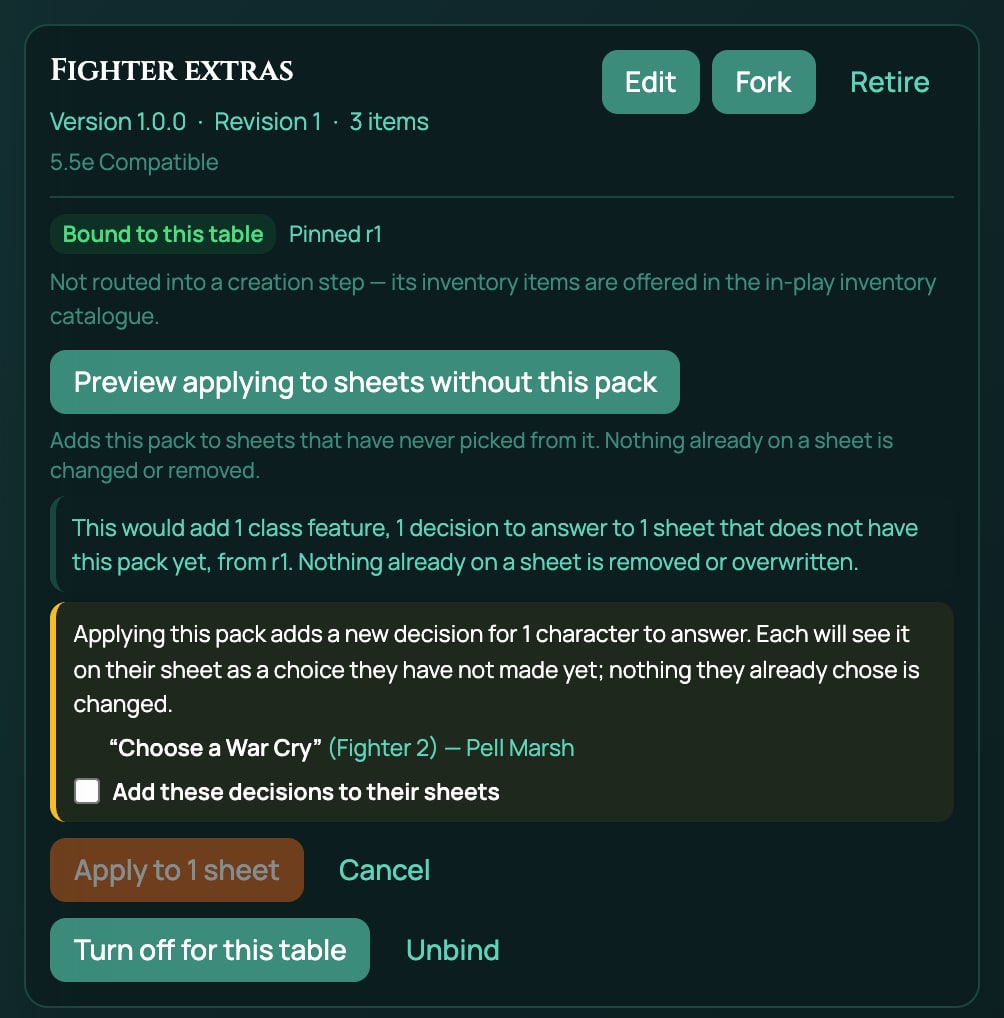
A pack that adds a decision to a class level, such as a new choice at Cleric 3, can reach characters who are already past that level when you apply or re-stamp it. The preview then says so, such as Applying this pack adds a new decision for 1 character to answer., lists each decision with the class level and the characters it reaches, and shows a tick box, Add these decisions to their sheets. The Apply to N sheets or Re-stamp N sheets button stays greyed out until you tick it. Each character then sees the decision on their sheet as a choice they haven't made yet; nothing they already chose is changed.
Move a game to a new revision
Every time you save a change to a pack it gets a new revision: r1, r2 and so on. A game stays on the revision it was bound with, called its pin, until you move it.
flowchart TD
  E["Edit the pack<br/>Save changes"] --> N["The pack is now at r2<br/>the game is still pinned to r1"]
  N -->|"Move this table to r2"| M["New picks come from r2<br/>sheets still hold their r1 copies"]
  M -->|"Preview re-stamp from r2<br/>then Re-stamp N sheets"| S["Copies on sheets<br/>updated to r2"]
- Save your change in Edit (see Change a pack). The binding says Pinned r1 · pack is now at r2.
- Click Move this table to r2. Under it: Changes what the pack offers from now on. Nothing already on a sheet moves. A message confirms the game is on r2.
From now on the builder, Level Up and + From pack offer the r2 version of every item. Items already on sheets are copies of r1 and stay as they are; a line on the binding counts how many sheets are on an older revision.
If the pack is routed into a step that takes one pick, and r2 would make picking from it delete players' earlier picks (for example, r2 adds a species to a pack that had only class rows), the move asks first. In the binding, a line explains what would be deleted, with the tick box I understand this replaces existing picks on sheets at this table. Tick it and click Move this table to r2 again, or click Cancel to stay on r1.
There's no button to move a game back to an older revision. If r2 is wrong, fix it and save r3, then move the game to r3.
Re-stamp sheets
Re-stamping updates the copies already on sheets to the revision the game is pinned to.
- Click Preview re-stamp from r2 (with the game's pin). A line says what would change, such as This would update 1 inventory item across 1 sheet, from r2. Items a player took from the pack are refreshed in place; nothing is taken away. It counts value fields, inventory items, calculations, effects, slot pools, class features and decisions to answer, whichever apply. Nothing has changed yet. A sheet is counted only when the re-stamp would really change something on it, or when it's recorded on another revision than the pin, so the count matches the line on the binding that counts sheets on an older revision.
- Click Re-stamp 1 sheet (with the same count) to make the changes, or Cancel. A message then says what changed, such as Updated 1 inventory item across 1 sheet, from r2.
If the preview finds nothing to change, it says Nothing would change: every sheet at this table already matches r2., and offers Close in place of the re-stamp button. That's what a second preview says straight after a re-stamp.
A sheet recorded on another revision whose items already match the pin is still offered, so the line on the binding can clear. When every sheet offered is like that, the preview says so, such as This would bring 1 sheet onto r3. It already matches r3, so nothing on it is rewritten. After Re-stamp 1 sheet, the message reads Brought 1 sheet onto r3. It already matched r3, so nothing on it was rewritten. The sheet now records r3, and its items are left exactly as they were.
If a re-stamp would remove something, the line names it instead of saying nothing is taken away: a duplicate copy of a value field, or an item the pack grants that the character isn't yet high enough level for. If it would add a class decision, the preview asks first: see New decisions for characters already past a level.
What a re-stamp changes and what it leaves alone:
| Updated | Never touched |
|---|---|
| An item's name, kind, description and other labels, rolls, effects, choices on offer, grants and price | Whether it's equipped or prepared, the uses it has and its most uses, how many the character carries, and the answers they gave to its choices |
| Values: their limits, label and notes, and a value worked out by a formula. A number the player typed stays. | A value's place and look on the sheet |
| Rolls and sheet-wide effects, in full | |
| Missing values, rolls and sheet-wide effects: added | Missing switches and markers: not added |
| Items the pack gives automatically, and features due at the character's level: added | Other missing items: not added |
So set an item's uses right before players take it: re-stamping never changes how many uses a copy has. The one exception is a copy taken while the item had no uses at all: if you've since given the item maxUses, a re-stamp adds them, full.
The preview button shows only once at least one character has taken something from the pack, or had it applied. For characters who have neither, use Apply to N sheets.
How players get your items
| Where | What they find | Who can use it |
|---|---|---|
| The character builder | Items from packs routed into a step, with From and the pack's name on the card | Anyone making a character at the game. See Create a character. |
| Level Up | Your subclass options in the class's subclass choice, and your class features at their level | Anyone levelling a character at the game. See Level up. |
| + From pack at the top of the sheet | The Add from this table's packs window: every item of every pack bound to the game that the character doesn't have yet, grouped under each pack's name with a count, a Search by name box and + Add on each. On an Ashfall sheet the GM also finds the Dread horrors, which are the GM's alone (see Build on Ashfall). | The GM, and whoever plays the character, on any plan. The button shows only while there's something the sheet doesn't have yet. |
| + From pack in the sheet's Items panel, inside Edit | Every item of every pack bound to the game, grouped under the pack's name in capitals, with prices | Part of the sheet editing tools, which keep their own plan. See Inventory and money. |
An item with a price costs the character that much: + Add takes it from their coins, in the Form View and on a Canvas sheet alike. A player can't add an item they can't afford; the GM can, and then no coins are taken. An item you've retired isn't offered anywhere. Class levels and class features are never in + From pack: a character gains them through the builder and Level Up. Adding another class's feature directly is refused with a sentence such as "Rage" is a Barbarian feature, and this character has no Barbarian levels. It arrives with the class level, subclass or feature choice that grants it.
A homebrew subclass shows inside the choice it adds to: in the builder for a character who starts at or above that level, and at Level Up. The pack's own row for it, the one that carries the subclass, is never offered as an item.
When you make a character with Create Sheet, or copy one with Duplicate, RollQuest applies your own homebrew packs for the game's system to it only if they're bound to that game.
Turn a pack off
Turn off for this table stops the game offering the pack's items, and keeps its pin and routing. Items already on sheets stay.
A warning says how many sheets the change affects: while the pack is off, those sheets aren't held to the pinned revision, and players who don't own the pack lose access to it until you turn it back on. Players with a sheet open see the warning too.
Turn back on offers the pack again, on the same revision and routing. A pack that's off can't be re-stamped or applied.
Unbind a pack
- On the binding, click Unbind. The window, titled Unbind and the pack's name from this table, says items already on sheets stay, and that the pinned revision is lost for good.
- Click Unbind pack. If characters have taken items from the pack, the window says how many, and the button becomes Unbind anyway: click it to go ahead, or Cancel to keep the binding.
After unbinding:
- Items, values and rolls already on sheets stay, and keep working.
- The game no longer offers the pack's items, and players who don't own it lose access to it.
- A subclass a character already chose stays chosen.
- Binding it again pins the pack's newest revision, with whatever routing you tick then.
Retire a pack
Retiring stops a pack you no longer use being offered anywhere. It doesn't delete anything: the pack and every revision of it are kept, and characters who already have something from it keep it.
- On the pack's row, click Retire. The window, Retire and the pack's name, says what retiring does and what can stop it.
- Click Retire pack. A message says the pack is retired and no longer offered anywhere, and either that it no longer counts against your pack count, or that it still does while characters have something from it.
A pack can't be retired while a game has it bound (even turned off), while a game or a character sheet runs on it as its game system, or while another homebrew pack builds on it. If one does, nothing changes and the window lists what's holding it under It is held by:. Unbind it at each of those games, retire the packs built on it or point them at another pack, then click Try again.
To stop offering one item rather than the whole pack, retire that item instead: see Remove or rename a row.
A retired pack and your pack count
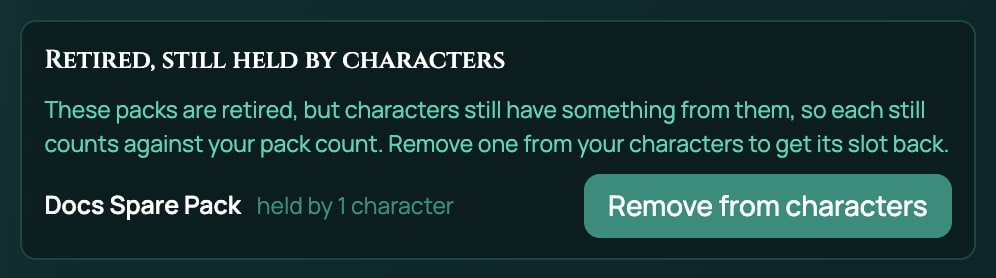
A retired pack keeps its slot, one of the 20 packs your plan allows, while any character still has something from it. The line at the top of My Homebrew then says so, such as 1 of 20 packs, including 1 retired pack characters still hold, and a section, Retired, still held by characters, lists each such pack with held by N characters and a Remove from characters button. Once no character has anything from the pack, its slot comes back.
Remove a retired pack from characters
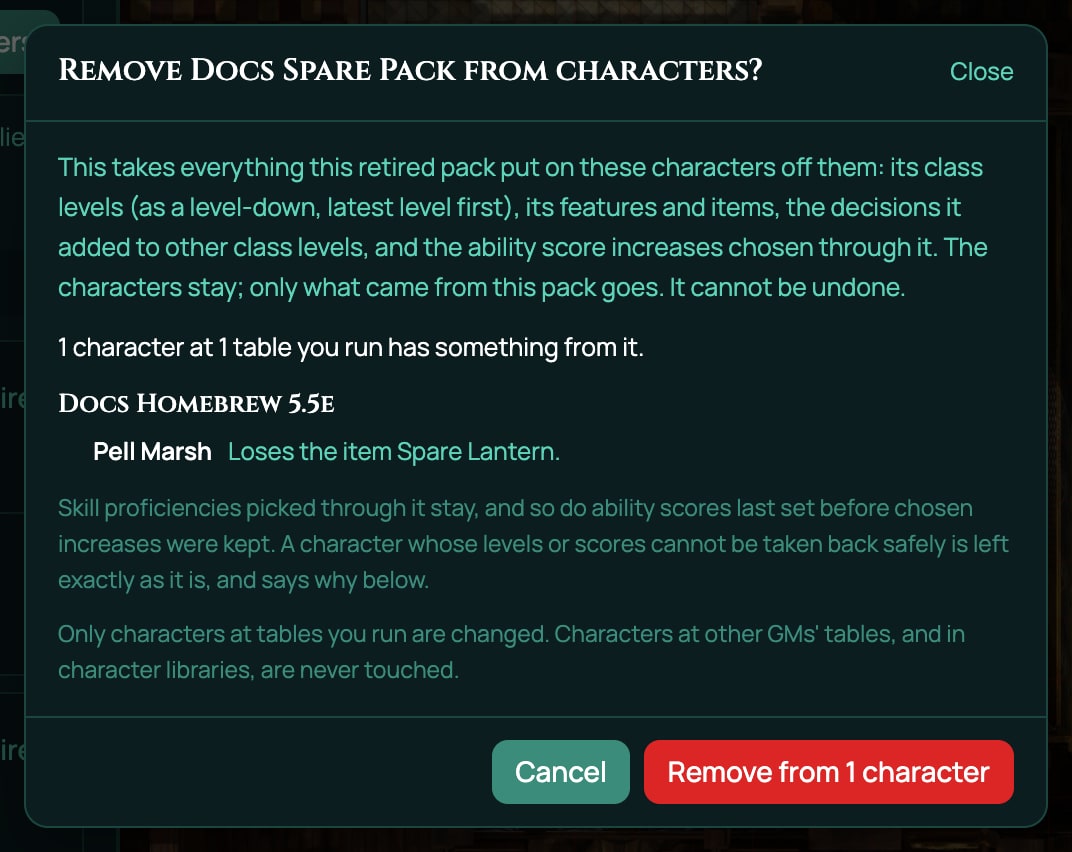
- Under Retired, still held by characters, click Remove from characters on the pack. The window Remove and the pack's name from characters? opens, and lists, game by game, each character and what they would lose. Nothing has changed yet.
- Read it, then click Remove from 1 character (with the real count), or Cancel.
Only characters at games you run are changed. Characters at other GMs' games, and in character libraries, keep what they have, and the pack keeps its slot while they do.
What comes off each character: the pack's class levels, as a level-down, latest level first; its features and items; the decisions it added to other class levels, with their answers; and the ability score increases chosen through it. Skill proficiencies picked through it stay. A character whose levels or scores can't be taken back safely is left exactly as it is, and the window says why. It can't be undone, and it needs a confirmed email address.
A message then says how many characters it was removed from, and whether the pack still counts against your pack count.
If your plan or account changes
- Homebrew leaves your plan, or is turned off. Games keep the packs bound to them, and players keep their items and can still take more. My Homebrew stays while you have packs, in a reduced form: you can turn packs off and back on, unbind, bind, retire, and remove a retired pack from your characters. You can't create, edit, copy, move a game to a new revision, re-stamp or apply until homebrew is back on your plan. Your packs still count towards the limit when it is.
- You delete your account. Packs nothing uses are deleted with it. A pack a game or a sheet still uses is kept, so those games keep working, but it can never change again. The binding then says The person who wrote this pack has deleted their account.
The binding block, part by part
Under each pack in My Homebrew is its binding block: the pack's state in the game you have open, and the buttons to change it.
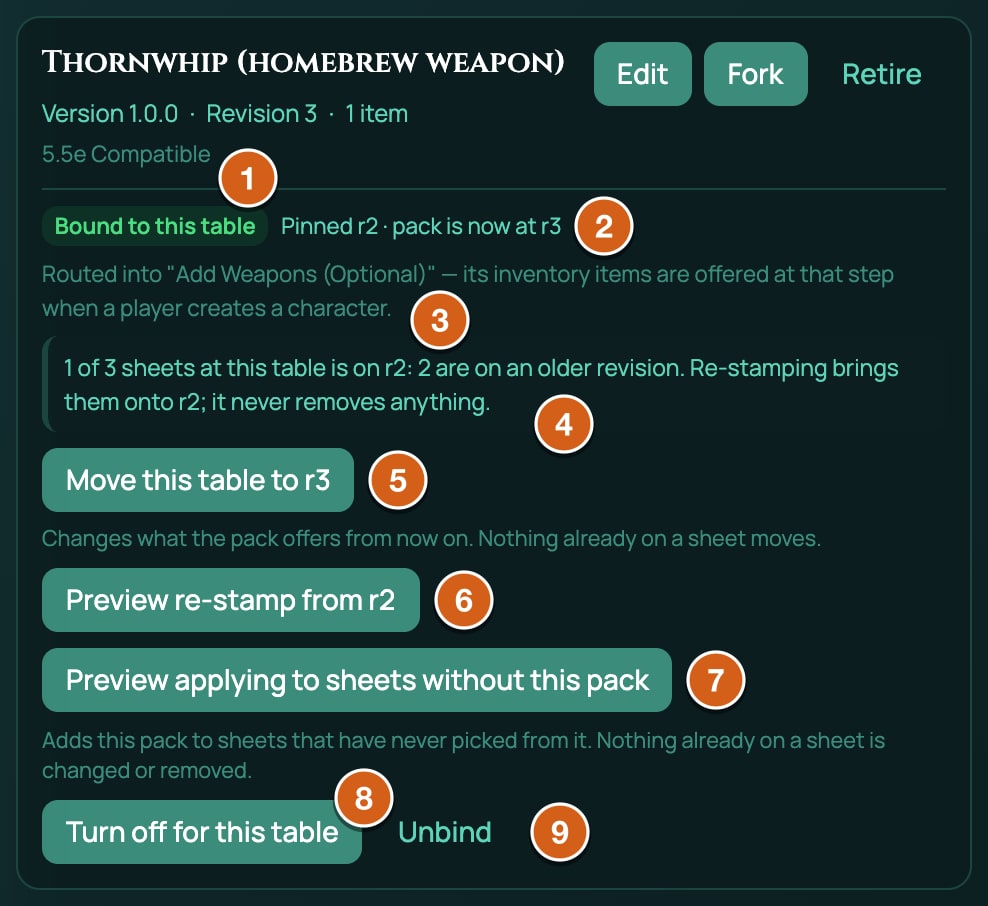
| Part | What it tells you |
|---|---|
| Not bound to this table | The pack isn't in this game. Bind to this table binds it. |
| Bound to this table | The pack is in this game and its items are offered. |
| Bound, turned off | The pack is in this game, but its items aren't offered until you click Turn back on. |
| Pinned r1 | The revision this game uses. · pack is now at r2 shows when there's a newer one. |
| Routed into | The builder steps you ticked, by name, such as Routed into "Add Weapons (Optional)" (see the table above). A step the game's system no longer has reads a creation step this table no longer has. |
| Not routed into a creation step | You ticked no step: the items are offered in + From pack. |
| A line counting sheets | Shows only when some characters at this game hold an older or newer revision, or one that isn't recorded. A re-stamp brings them onto the pin. |
| The revision this table is pinned to is missing | Nobody sees the pack's items. Unbind it and bind it again to pin the newest revision. |
| This pack has been retired | The game keeps what it was pinned to, but the pack isn't offered anywhere else. |
| The person who wrote this pack has deleted their account | The game keeps it and everything already on sheets, but it will never get a new revision. |
| Button | When it shows | What it does |
|---|---|---|
| Bind to this table | The pack isn't bound. | Opens the Bind window. |
| Move this table to r2 | The pack is on and has a newer revision. | Moves the pin forward. Nothing on any sheet changes. If the new revision would let a one-pick step delete picks, it asks first, with a tick box. |
| Preview re-stamp from r1 | The pack is on and at least one character has taken something from it. | Shows what a re-stamp would change, then Re-stamp N sheets does it; it only shows when at least one sheet would change. Cancel (or Close, when nothing would change) drops the preview. |
| Preview applying to sheets without this pack | The pack is on. | Shows what would be added to characters with nothing from the pack, and names any it would leave alone and why. Apply to N sheets does it; it only shows when at least one sheet would change. Cancel (or Close, when nothing would change) drops the preview. |
| Turn off for this table / Turn back on | The pack is bound. | Stops, or starts again, offering the pack's items in this game, on the same revision. |
| Unbind | The pack is bound. | Opens the Unbind window. |
Either preview can also list new class decisions with the tick box Add these decisions to their sheets, which you tick before its button works: see New decisions for characters already past a level.
Only one move, re-stamp or apply runs at a time; the other buttons grey out meanwhile. In the reduced My Homebrew you get when homebrew leaves your plan, the move, re-stamp and apply buttons aren't shown: see If your plan or account changes.
The Bind window
| Part | What it does |
|---|---|
| Where should its items appear? | The builder steps of the game's system, each with a tick box. Optional; tick as many as fit. |
| Replaces existing picks | Marks a step that takes one pick, with the reason: this step lets a player hold only one choice, so picking an item from this pack deletes whatever they had picked before. Ticking it shows the red This routing deletes players' existing picks box. A pack of only class levels and class features is never marked. |
| I understand this replaces existing picks on sheets at this table | Must be ticked before Bind pack works when you've ticked a one-pick step. Changing any tick clears it. |
| Bind pack | Binds the pack, pinned to its newest revision. It reads Try again after a refusal you can retry. |
| Cancel or Close | Closes the window without binding. |
If the bind is refused, the window says why. When a pack is refused lists every reason.
Related
Your first homebrew pack, step by step · The pack file, field by field · Subclasses and class features · Create a character · Level up · When a pack is refused